
A practical guide for business owners who assume their host or plugin “has backups.” What a complete website backup contains, where the copies should live, how long to keep them, who owns the restore, and a quarterly drill that proves the site actually comes back.
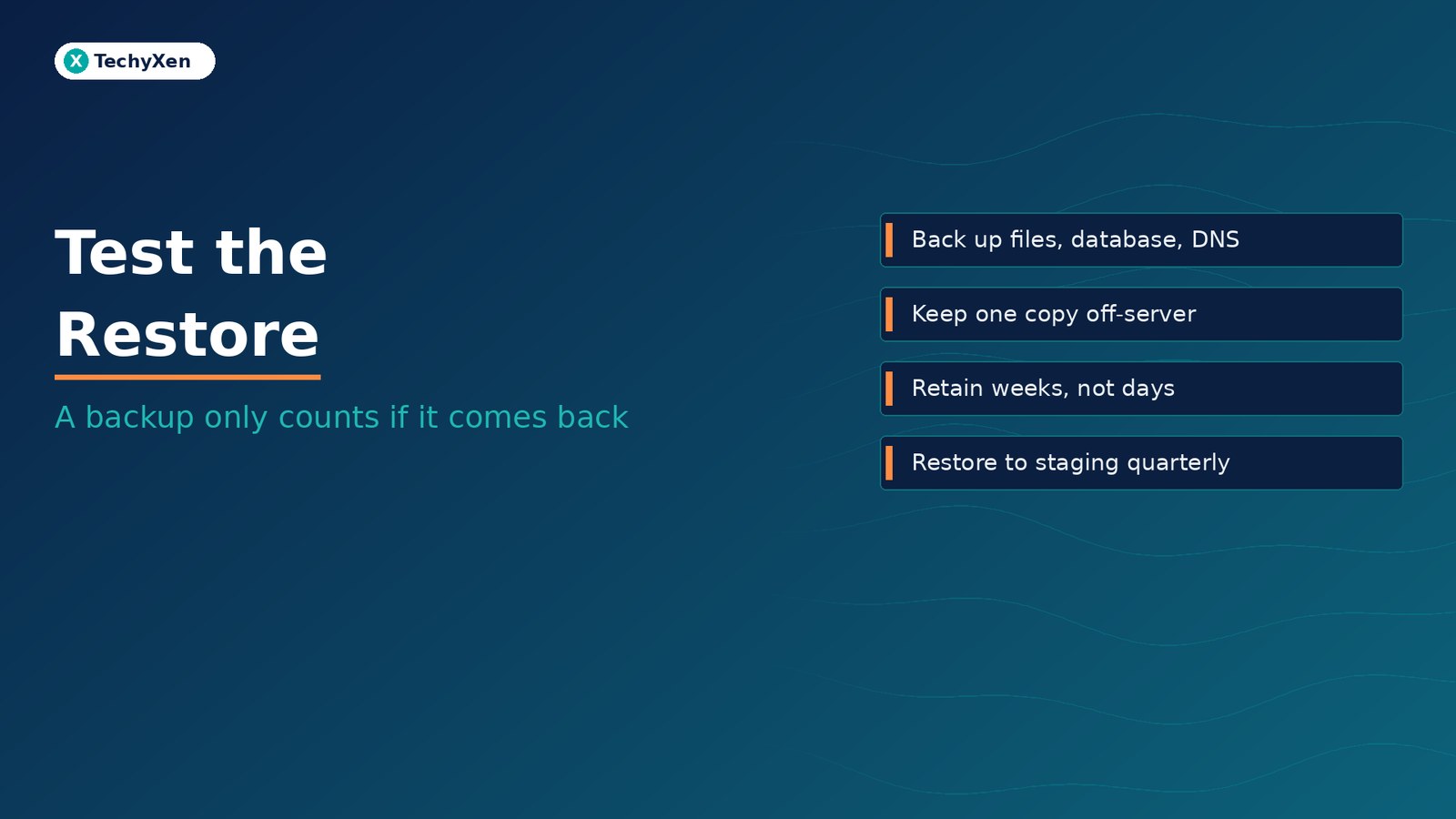
A website backup only counts if you can restore it — to a working site, within a time your business can live with. That means backing up the files and the database together, plus the things that never sit on the web server (DNS records, email settings, admin logins). Keep at least one copy off the server under a separate login, keep versions for longer than a problem can go unnoticed, name the person who runs the restore, and prove it every quarter by restoring to a staging copy against a written checklist and a recovery-time target.
Why “the host has backups” is not a recovery plan
Most small sites have some backup running somewhere: a hosting snapshot, a plugin on a schedule, a zip someone downloaded at launch. Very few owners have ever watched one of those copies turn back into a working site. That gap is where outages get long.
The WordPress.org Backups guide is direct about it: most hosts back up the entire server, but it takes time to request a copy of your site from their backups, and a speedy recovery is critical. The same guide recommends backing up automatic backups with a manual one “once in a while to guarantee that the process is working.”
CISA’s Cyber Guidance for Small Businesses makes the same point from the incident side. Many organizations hit by ransomware either had no backups or had incomplete or damaged ones. It is not enough to schedule a backup; CISA says it is critical to regularly test partial and full restores and to write a plan for the restoration — because some organizations found restoring took significantly longer than they expected.
“A backup you have never restored is a hope, not a plan. The restore is the product; the backup file is just the raw material.”
What a complete website backup actually contains
A WordPress site has two halves, and the WordPress.org documentation says you need both to fully restore a typical site. Downloading the site folder does not capture the database, because the database lives in a separate MySQL or MariaDB system. A database export does not capture themes, plugins, or uploaded images.
- Database — posts, pages, settings, users, form entries, and on a store, orders and customers. This changes every day.
- Files — WordPress core, themes, plugins, the uploads folder (every image and PDF),
wp-config.php, and.htaccess. - DNS records — A, CNAME, MX, and TXT records (including SPF, DKIM, and DMARC). These sit at your registrar or DNS provider, not in any site backup. Export or screenshot the zone after every change.
- Email setup — which service handles mail and its settings. A rebuilt site that cannot send contact-form email is not fully restored.
- Access and recovery details — who holds the registrar, DNS, hosting, and WordPress admin logins, plus two-factor recovery codes, stored in a password manager the business controls.
- Integrations — payment gateway, analytics, form-to-CRM connections, and webhooks. Note what each needs (API keys, callback URLs) to reconnect.
Treat files and database as one backup set taken around the same time. WordPress.org suggests backing up the database first, then the files, and restoring in the reverse order: files first, then import the database, updating wp-config.php if the database credentials changed.
Where the copies should live: 3-2-1, with a separate key
CISA’s small-business page Back Up Business Data calls the 3-2-1 rule a trusted guideline:
- 3 copies of important files
- 2 different types of storage (for example, a drive and the cloud)
- 1 copy stored off-site
For a website, “off-site” means off the server. A backup stored in the same hosting account fails with that account — a suspended plan, a deleted server, or a compromised login takes the site and its backups together. WordPress.org suggests keeping at least three to five recent backups in different locations: one on the host, one in cloud storage, one downloaded to a local computer.
Location is half the rule. The other half is access. The #StopRansomware Guide from CISA and partner agencies warns that attackers hunt for stored credentials to reach backup systems, and recommends offline, encrypted backups. Mandiant’s M-Trends 2026 report says ransomware groups in 2025 actively targeted backup infrastructure, including deleting backup objects from cloud storage, and recommends immutable storage decoupled from everyday identity systems.
The small-site translation: the cloud bucket or drive holding your backups should use a different login from your hosting and WordPress admin, with two-factor on, and ideally versioning or write-once protection so a stolen password cannot quietly wipe old copies.
Keep copies for longer than a problem can hide
Retention is the setting most owners never look at. If your backup tool keeps seven daily copies and a hack, a bad plugin change, or a deleted page goes unnoticed for ten days, every copy you have contains the problem.
How long do problems hide? In M-Trends 2026, Mandiant reports a global median dwell time of 14 days for the intrusions it investigated in 2025, up from 11 days the year before. When organizations spotted the intrusion themselves, the median was 9 days; when someone outside had to tell them, it took longer. Those figures come from serious incidents Mandiant was hired to investigate, not small business sites, but the lesson carries: discovery is rarely same-day.
CISA’s backup guidance asks businesses to test that they can roll data back at least seven days. Treat that as the floor, not the target. A simple layered schedule covers most small sites:
- Daily copies kept for two weeks (daily or more often for stores and booking sites; WordPress.org suggests weekly backups for smaller, low-activity sites and daily for busy ones)
- Weekly copies kept for two to three months
- Monthly copies kept for a year, plus one before every major update or redesign
Decide recovery time and acceptable data loss before the outage
Two numbers turn “we have backups” into a plan. NIST’s contingency-planning guide, SP 800-34 Rev. 1, defines them:
- Recovery time objective (RTO) — the maximum time a system can stay unavailable before the impact on the business becomes unacceptable.
- Recovery point objective (RPO) — the point in time, before the outage, to which data can be recovered from the most recent backup. In plain terms: how much recent work you can afford to lose.
Answer both in business language. A brochure site might accept a day offline and a week of lost edits. A store taking orders every hour cannot lose a day of orders, which means more frequent database backups and a restore path rehearsed well enough to finish in hours, not days. CISA’s small-business guidance tells owners to refine their RPOs and RTOs through scheduled recovery tests — the drill below is how you find out whether your numbers are real.
“If you do not know how long a restore takes, you do not have a recovery time. You have a guess — and you will find out the real number during the outage.”
Who owns the restore — name a person, not a plugin
Backups run on a schedule. Restores need a human who knows which copy to pick, where the logins are, and what “working again” means. When that person is a former freelancer or an agency contact who no longer replies, the restore stalls before it starts.
- Name a restore owner and a backup person — an in-house person, your web partner, or both. Write their names on the checklist.
- Confirm the business can reach the backups without the vendor — the storage account and hosting panel sit in accounts you own, a point we cover in owning your domain, hosting, and logins before you hire a web vendor.
- Put restores in the contract — if you pay for website care, the agreement should say who restores, how fast, and how often restores are tested (see maintenance retainer vs rebuild).
- Keep the runbook somewhere that is not the website — a shared document or printed page. CISA advises writing procedures down and training the team, so recovery does not depend on one person’s memory.
A quarterly restore drill you can run in an afternoon
Once a quarter, restore a real backup to a staging copy — a private copy on a subdomain or separate hosting space, never over the live site. Time it from start to finish.
- Pick the copy deliberately — use the off-server copy, not the one sitting next to the live site. Alternate between the latest daily and an older weekly so you prove retention too.
- Start the clock — note the time you begin. That number is your measured recovery time.
- Restore files, then database — follow the order WordPress.org documents. Note every step that needed a login, a support ticket, or a search for instructions.
- Keep the copy private — tick “Discourage search engines” in WordPress Reading settings, protect the staging URL with a password, and stop outgoing email so test messages never reach customers.
- Check what makes money — homepage, key service pages, a recent post, images, contact form, checkout or booking flow in test mode, and admin login.
- Compare against the live site — do recent orders, form entries, and uploads match the backup’s timestamp? The gap is your real recovery point.
- Stop the clock and write it down — date, backup used, time taken, what broke, and who ran it. Compare with your RTO and RPO.
- Fix one weakness and delete the staging copy — a missing login, a slow download, an incomplete backup. Remove the test copy so it does not become an unpatched second site.
Run an extra drill after any change to hosting, backup tooling, or the site’s structure. The routine for safe plugin updates — fresh backup, staging first, a check of revenue pages — is in our guide to updating WordPress without breaking your site.
Make the next restore boring
A good recovery is uneventful. The right copy exists off the server, it is old enough to predate the problem, the person restoring it has the logins and a checklist, and everyone already knows roughly how long it will take because they timed it last quarter. Inventory what you would need to rebuild, apply 3-2-1 with separate credentials, set retention longer than problems tend to hide, write down your recovery time and acceptable data loss, and rehearse.
TechyXen builds and maintains websites with recovery designed in — off-server backups, access the business owns, staging for changes, and documented restore steps as part of web development and ongoing care. If you are not sure your current backups would bring the site back, we can run a restore test with you and hand over a written runbook.
Web development · Automation & AI · Digital marketing · Contact · WhatsApp · Call

2 Comments
[…] Test a website restore before you need one — a backup only counts if it comes back […]
[…] Test a website restore before you need one — a backup only counts if it comes back […]