
A practical routine for business owners who run their website on WordPress and cannot afford a morning of downtime. Why skipping updates is now riskier than running them, why one-click updates still break sites, and the backup, staging, and update order that keeps both security and leads intact.
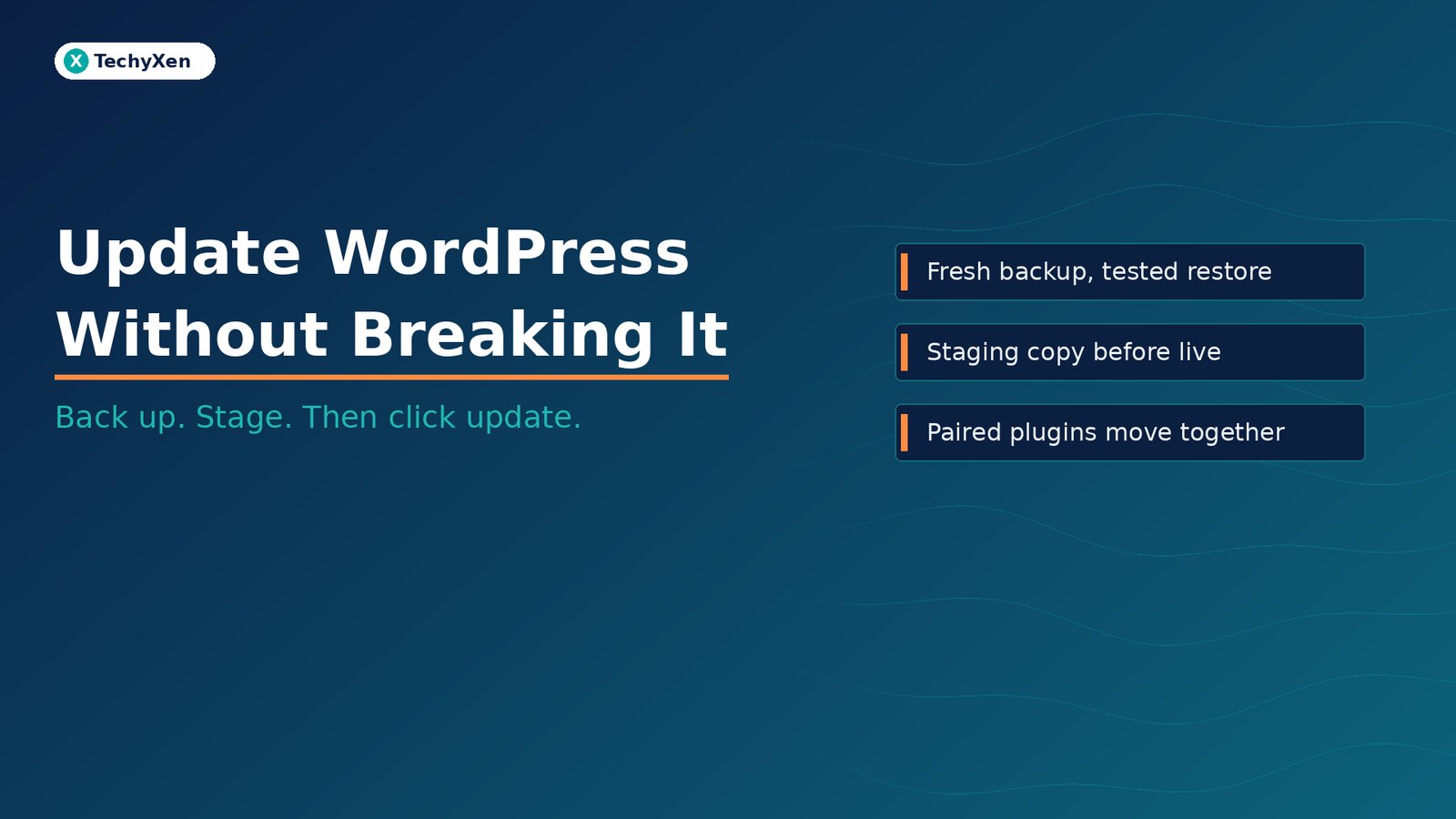
The safest way to run WordPress in 2026 is to update often, but never blind: take a restorable backup, test the update on a copy of the site, update connected plugins together, and check the pages that make money before you walk away. Skipping updates leaves known holes open for attackers who now move within hours. Clicking “Update all” on a live site with no backup trades that risk for another one: a fatal error that takes your enquiry forms, bookings, or checkout offline until someone fixes it. A short, repeatable routine removes most of both risks.
Why skipping updates is no longer the safe option
Patchstack’s State of WordPress Security in 2026 report counted 11,334 new vulnerabilities in the WordPress ecosystem in 2025, a 42% increase on 2024. Almost none of them were in WordPress itself:
- 91% were in plugins and 9% in themes. Only six were found in WordPress core, and Patchstack rated them low priority.
- 1,966 (17%) had a high severity score, meaning they were likely to be used in automated mass attacks. Highly exploitable vulnerabilities rose 113% year on year.
- Paid plugins and themes were not safer. Of the reports Patchstack received for premium or freemium components, 76% were exploitable in real attacks.
The report also found that roughly half of high-impact vulnerabilities were exploited within 24 hours of disclosure, and that the weighted median time to first exploit was five hours for the most heavily targeted ones. A site that waits for a quarterly maintenance visit is exposed for weeks.
“The most heavily targeted WordPress vulnerabilities are attacked within hours of going public. Your update routine has to move faster than your maintenance calendar.”
Why one-click updates still take sites down
If updates are so important, why do so many owners avoid them? Because a careless update can break a working site, and the failure usually lands on the pages that matter most. The common causes are predictable:
- Paired plugins drifting apart — Many tools ship as a free core plugin plus a paid Pro add-on, as page builders such as Elementor and Elementor Pro do. If the free plugin updates automatically and the paid one does not, the two can stop matching, and a mismatch can trigger a fatal error across every page built with them.
- Auto-updates from more than one place — WordPress has offered automatic plugin and theme updates since version 5.5, and many hosting panels and installers run their own updater on top. Two systems updating the same site on different schedules make it hard to know what changed and when.
- Old PHP or abandoned plugins — A plugin that has not been maintained, or a server still on an outdated PHP version, can fail when everything around it moves forward.
- Theme edits made in the wrong place — Changes made directly in a parent theme’s files are overwritten by the next theme update.
- Updating everything at once — When ten plugins update together and the site breaks, nobody knows which one caused it.
None of these is a reason to stop updating. They are reasons to update in a controlled way.
Take a backup you have actually restored
A backup only counts if you can restore it quickly. Before any update session, make sure you have:
- Both files and database — The database holds your pages, posts, form entries, orders, and settings. A files-only backup will not bring a site back.
- A copy stored off the server — If the hosting account is compromised or the server fails, a backup kept on the same server may go with it.
- A recent timestamp — Take a fresh backup immediately before you update, not just the nightly one from yesterday. On an online store, new orders since the last backup are part of the risk.
- A tested restore — Restore to a copy at least once, so you know how long it takes and which steps the hosting panel or backup tool requires.
Write the restore steps down in plain language. When a site is down, the person handling it should follow a checklist, not search forums.
Test on a staging copy before the live site
A staging site is a private copy of your website where you can apply updates first. Many hosting panels and backup plugins can create one with a few clicks. Use it for anything beyond a minor patch:
- Clone the live site to staging just before the update session, so the copy matches what is live.
- Update on staging first and click through your key pages and forms.
- Block search engines and email on staging so test form submissions do not reach customers and the copy does not get indexed.
- Then repeat the same updates on live, in the same order. Avoid pushing a staging copy over a live site that has taken new orders or bookings in the meantime, because that can overwrite them.
For urgent security patches, it is reasonable to update live first with a fresh backup in hand. For major version jumps, builder updates, and ecommerce plugins, staging first is worth the extra time.
“A backup you have never restored is a hope, not a plan. Test the restore before the day you need it.”
Update in a safe order, one group at a time
Order reduces surprises and makes any failure easy to trace back. A sensible sequence for most business sites:
- Check compatibility first — Read the changelog for major releases, and confirm each plugin supports your WordPress and PHP versions.
- Update WordPress core on its own, then check the site.
- Update paired plugins together — a free plugin and its Pro add-on, or WooCommerce and its extensions, should move to matching versions in the same session.
- Update the remaining plugins in small groups, checking the site after each group.
- Update the theme last, and keep custom changes in a child theme or the builder, never in the parent theme’s files.
- Remove what you do not use — deactivated plugins can still carry vulnerable code. Fewer plugins means fewer updates and fewer conflicts.
On automatic updates, pick one system and turn the others off. Automatic minor and security updates are usually worth keeping. Major updates to builders, ecommerce plugins, and anything with a paid add-on are safer handled in a scheduled session with a backup.
Check the pages that make money after every update
A home page that loads does not mean the site works. After each update session, check:
- The contact or enquiry form — submit a real test and confirm the email or CRM entry arrives.
- Bookings and checkout — run a test booking or a test order through to the confirmation step.
- WhatsApp, call, and chat buttons — tap them on a phone.
- Pages built with your page builder — open the builder once to confirm it loads, and view a few key pages on mobile.
- The error log — look for new warnings or fatal errors in your hosting panel.
If something does break, WordPress has a safety net. Since version 5.2, when a plugin or theme causes a fatal error, WordPress emails the site administrator a Recovery Mode link that lets you log in and pause the faulty plugin. That email only helps if it reaches someone who reads it, so check that the admin address is a monitored inbox and that your site’s email actually delivers. If the fix is not obvious within minutes, restore the backup, get the site live again, and diagnose on staging.
Keep a log so the next update is faster
A simple update log turns a stressful job into a routine one. Record the date, what was updated from which version to which, who did it, and anything that broke and how it was fixed. Over a few months, the log shows which plugins cause trouble, which ones are no longer maintained, and how long a normal session takes.
- Set a fixed rhythm: security patches as soon as they are released, everything else in a weekly or fortnightly session.
- Keep access to hosting, domain, and the WordPress admin with the business, not only with a contractor.
- Review the plugin list every quarter and replace anything abandoned.
Build a maintenance routine that keeps the site live
WordPress core is now rarely the problem. The risk sits in plugins and themes, and it cuts both ways: update too slowly and attackers get in, update carelessly and your own site takes itself offline. The fix is the same routine every time: a fresh, tested backup; staging for anything major; paired plugins updated together; one auto-update system; and a quick check of your forms, bookings, and checkout before you call it done.
TechyXen builds and maintains WordPress websites with this routine built in, from backups and staging to update sessions and post-update checks on the pages that carry your enquiries. If your site has been running on auto-updates and hope, we can review your plugins, hosting, and backups and set up a maintenance plan that keeps it secure and live.
Web development · Automation & AI · Digital marketing · Contact · WhatsApp · Call

3 Comments
[…] Update WordPress without breaking your site — a backup, staging, and plugin routine that keeps you… […]
[…] Update WordPress without breaking your site — a backup, staging, and plugin routine that keeps you… […]
[…] Update WordPress without breaking your site — a backup, staging, and plugin routine that keeps you… […]