
For site owners and marketers who want to show up in Google and AI answers: how to read your robots.txt, fix the lines that quietly block search, and decide which AI crawlers to allow.
Your robots.txt file decides which crawlers may fetch which parts of your site, and one wrong line can hide your best pages from Google or from the AI assistants your customers now ask. It does not control indexing, it does not protect private pages, and it is read by every major crawler before anything else. Ten minutes spent auditing it is one of the cheapest visibility checks a business can run.
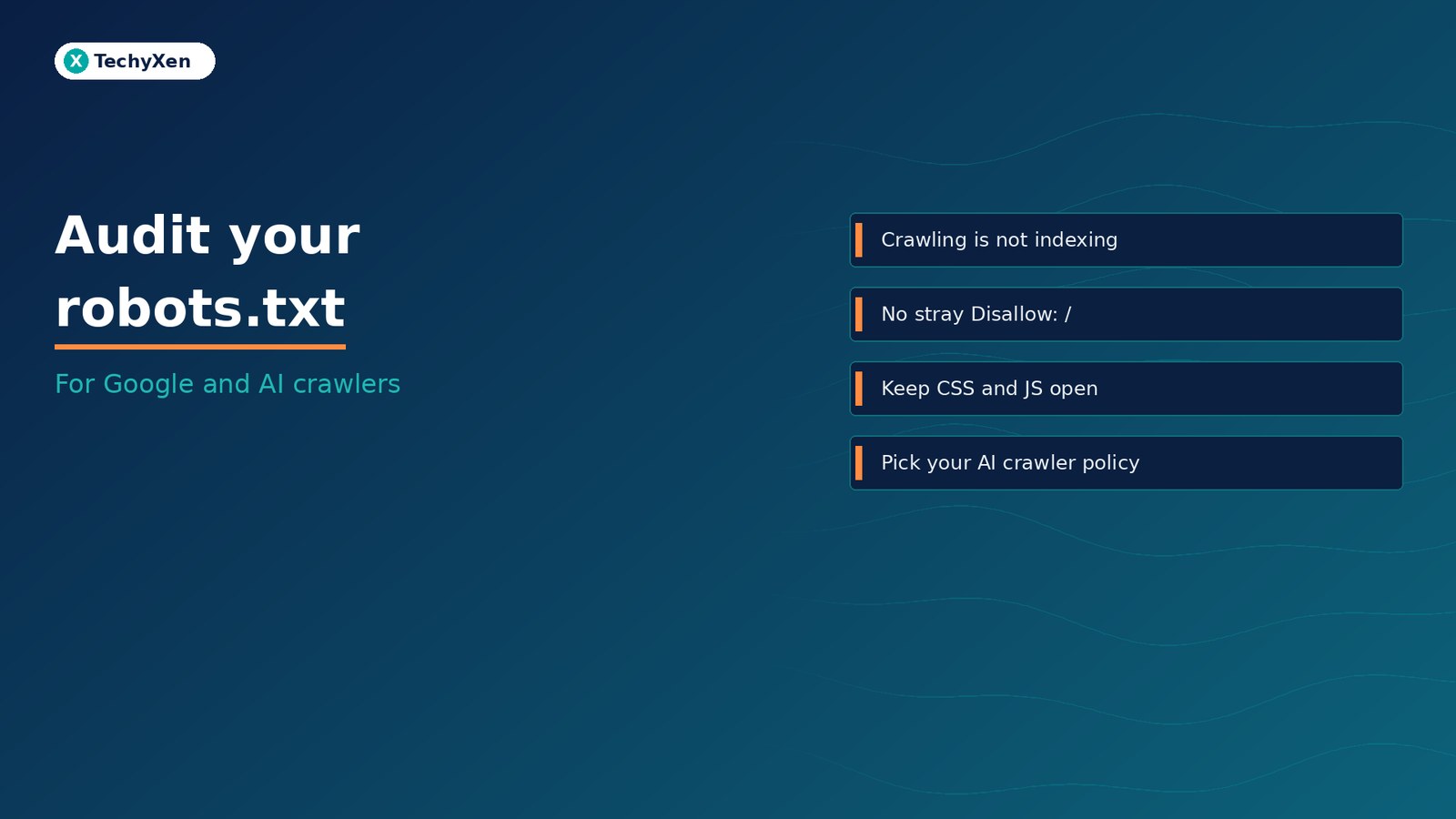
What robots.txt actually controls
Robots.txt is a plain text file at the root of your domain (yourdomain.com/robots.txt). Crawlers read it to learn which paths they may request. Google’s robots.txt introduction is clear that it is mainly for managing crawler traffic, not for keeping pages out of Google.
- It controls crawling, not indexing. A blocked URL can still appear in results, without a description, if other pages link to it.
- It is public. Anyone can read it, so listing secret folders in it advertises them.
- It is a request, not a lock. Reputable crawlers obey it; scrapers and attackers may not.
If a page must stay out of search, use a noindex tag or a login. If it must stay private, use a password.
The mistakes that quietly block search
Most robots.txt problems are leftovers: a rule added during a build, a plugin default, or a copy-paste from another site. These are the ones we find most often:
Disallow: /left over from development. One line blocks the entire site. In WordPress, the “Discourage search engines from indexing this site” setting is a common source of it after launch.- Blocking CSS, JavaScript or image folders. Google renders pages like a browser. If it can’t load your theme files, it may misjudge layout and mobile-friendliness.
- Blocking a page you also mark noindex. Google has to crawl a page to see its noindex tag. Block it and the tag is never read, so the URL can stay indexed.
- Wrong case or paths. Rules are case-sensitive:
Disallow: /Blog/does nothing to/blog/. - Relying on
crawl-delayornoindex:lines. Google ignores both in robots.txt.
Robots.txt stops a crawler from reading a page. It does not stop the page from appearing in search.
How Google reads the file, including when it breaks
Google’s robots.txt specification explains a few behaviours that matter during outages and migrations:
- The most specific rule wins. When an
Allowand aDisallowboth match, Google applies the longer path. Wildcards*and end-of-URL$are supported. - Each crawler follows its own group. If you add a
User-agent: Googlebotgroup, Googlebot ignores yourUser-agent: *rules entirely, so repeat anything it still needs. - A missing file means “crawl everything”. A 404 for robots.txt is treated as no restrictions.
- A server error means “stop”. If robots.txt returns a 5xx error, Google treats the whole site as blocked for a while, so a broken file can pause crawling across the site.
- Changes aren’t instant. Google generally caches robots.txt for up to 24 hours, and the file is limited to 500 KiB.
Decide which AI crawlers you want
AI assistants now use their own crawlers, and robots.txt is where you allow or refuse them. Each company publishes its user-agent names, and they do different jobs:
- Google-Extended controls whether Google may use your content for Gemini models. Google states it does not affect your ranking or inclusion in Google Search. See Google’s crawler list.
- GPTBot and OAI-SearchBot are OpenAI’s crawlers for model training and for ChatGPT search results respectively, documented in OpenAI’s bot overview.
- Other assistants such as Claude and Perplexity publish their own crawler names. Check each vendor’s documentation before adding rules.
For most businesses that sell services or products, being found and cited is the goal. Blocking search-focused AI crawlers usually means fewer mentions in AI answers, not more protection. A publisher whose content is the product may make the opposite call, and that is a business decision, not a technical one.
If you want AI assistants to recommend you, don’t block the crawlers that feed their answers.
A simple, safe robots.txt for most business sites
A small business site rarely needs more than a few lines. A typical WordPress example:
User-agent: *
Disallow: /wp-admin/
Allow: /wp-admin/admin-ajax.php
Disallow: /cart/
Disallow: /checkout/
Disallow: /my-account/

Sitemap: https://yourdomain.com/sitemap.xml
Block only what has no search value, such as admin areas, carts, account pages and internal search results. Leave content, product, service and asset folders open, and list your sitemap. On Shopify, edit the file through the robots.txt.liquid theme template rather than replacing it, so the platform defaults stay in place.
Audit yours in ten minutes
- Open
yourdomain.com/robots.txtin a browser and confirm it loads with a 200 status, not an error. - Search the file for
Disallow: /on its own and for any folder holding pages you want ranked. - Check that CSS, JavaScript and image paths aren’t blocked.
- Open the robots.txt report in Search Console to see the version Google fetched and any parsing errors.
- Use URL Inspection on your top five pages to confirm crawling is allowed.
- Decide your AI crawler policy and write it down, so the next developer doesn’t undo it.
Build a site that search engines and AI can read
Robots.txt is small, but it sits in front of everything else: your content, your sitemap and your chances of being cited in AI answers. Check it after every launch, migration or plugin change, and keep it short. If you’d like a second pair of eyes, TechyXen can audit your crawl setup alongside SEO, site speed and AI visibility, then fix what we find as part of a website build or growth plan. Write to [email protected] or use the links below.
Web development · Digital marketing · Contact · WhatsApp · Call

Leave A Comment