
For store owners, service businesses and anyone with a WordPress or Shopify site: how to make sure Google can find, read and show the photos you already have, using filenames, alt text, image sitemaps and the Search Console report built for image traffic.
Uploading more photos will not bring more search traffic if Google cannot find or understand the ones you already have. Images can appear next to text results, in Google Discover and in Google Images, but only when they sit in standard image tags, load without a scroll or click, and come with words that explain them. Google’s own image guidance comes down to two jobs: help it discover and index your images, and make the pages they sit on worth showing. Fix those basics on your existing pages first, then keep uploading.
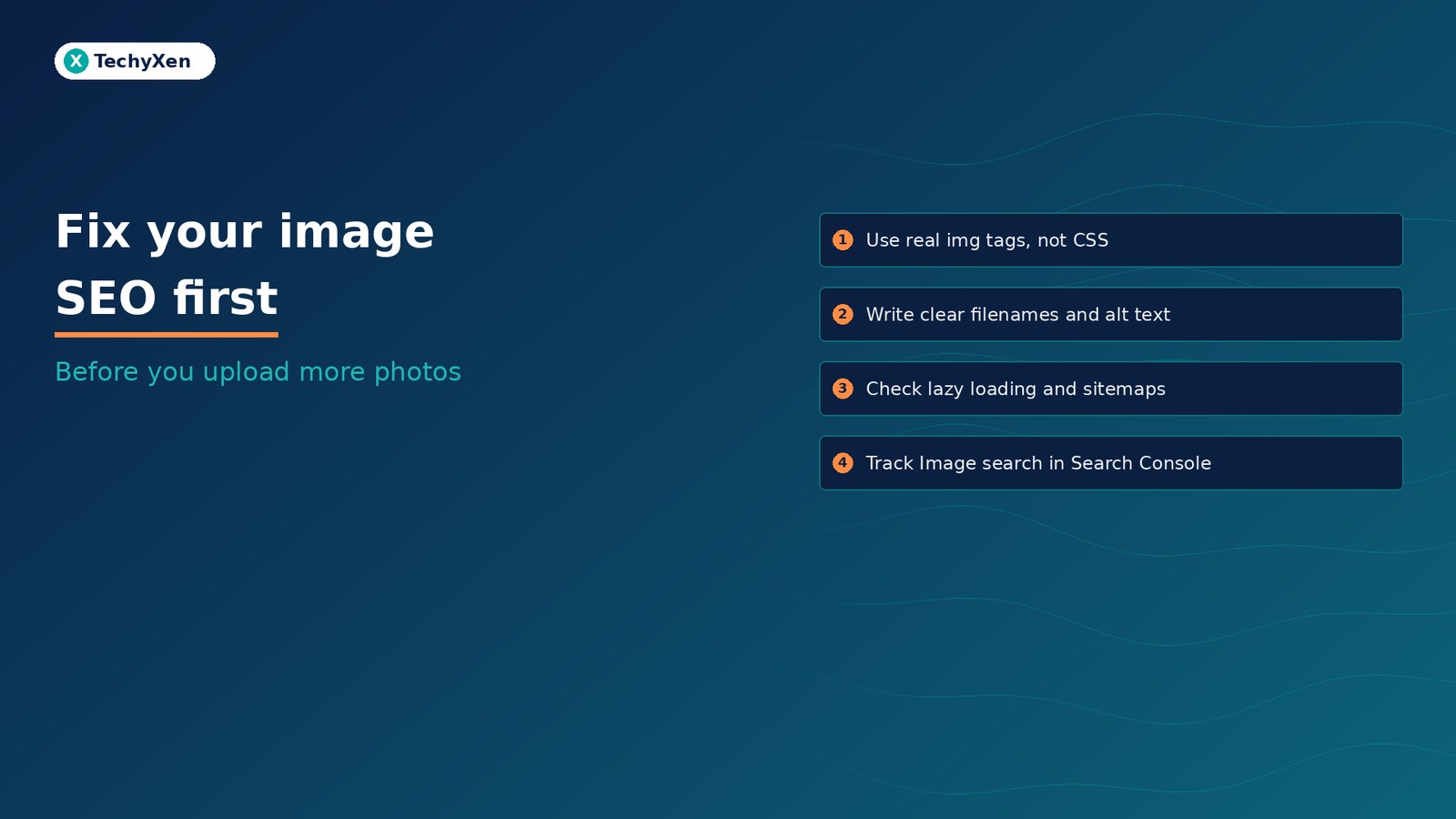
Why Google misses images that shoppers can see
A photo that looks fine to a visitor can still be invisible to Google. According to Google’s image SEO best practices, its crawlers find images in the src attribute of an <img> element. The same page is blunt about the alternative: Google doesn’t index CSS images.
That matters because many page builders and themes place banners, hero shots and gallery tiles as CSS backgrounds. They look identical on screen, but to Google they are decoration. Other common gaps:
- Responsive images with no fallback. Some browsers and crawlers do not understand
srcsetor<picture>, so Google recommends always giving the<img>a plainsrcURL as well. - Unsupported or mislabelled files. Google Search supports BMP, GIF, JPEG, PNG, WebP, SVG and AVIF, and suggests the file extension should match the file type.
- The same image at many URLs. If one photo is used across several pages, Google advises referencing it with the same URL each time so it can cache and reuse it.
None of this needs new photography. It needs a look at how your theme outputs the photos you already paid for.
Name files and write alt text Google can use
Google reads the page around an image to work out what it shows. Two fields do most of the work, and both are free to fix.
Filenames. Google says the filename gives “very light clues” about the subject. Its example: my-new-black-kitten.jpg is better than IMG00023.JPG, and generic names like image1.jpg or pic.gif should be avoided. Rename files before you upload. On Shopify, the product CSV guide notes that an image’s file name is final and cannot be edited after it has been uploaded to your store.
Alt text. Google calls alt text the most important attribute for image metadata. It uses alt text together with computer vision and the page content to understand an image, and the same text helps people using screen readers or slow connections. Good alt text:
- Describes what is actually in the photo, such as “Dalmatian puppy playing fetch” rather than “puppy”.
- Fits the page it sits on, so a product photo names the product and the detail shown.
- Stays short. Shopify’s help centre recommends around 125 characters or less.
- Never lists keywords. Google warns that keyword stuffing in alt attributes creates a poor experience and may cause your site to be seen as spam.
Purely decorative images, such as background textures or divider graphics, do not need a description. The W3C alt decision tree explains when an empty alt="" is the right answer.
Google doesn’t index CSS images. If a photo matters for search, it belongs in an img tag with a real src and honest alt text.
Where to fix this in Shopify and WordPress
You do not need a developer to add alt text to existing photos. Both platforms have a field for it.
- Shopify product photos: go to Products, open a product, click a media item and choose Add alt text. For a large catalogue, the product CSV export has an Image alt text column you can fill in and import.
- Shopify suggestions: the media editor may suggest AI-generated alt text for images that have none. Review each one before you accept it, because a wrong description is worse than a short accurate one.
- WordPress: open Media, then Library, and click an image. The Attachment details panel shows the file name and an Alt Text field you can edit.
- Theme and builder images: check banners, sliders and section backgrounds. If a page builder places an important photo as a background, switch that section to a normal image element where you can.
Start with the pages that earn money: best-selling products, top service pages and your homepage. Then work through the rest in batches.
Make sure lazy loading and sitemaps do not hide photos
Lazy loading delays images until they are needed, which keeps pages fast. Done badly, it hides them from Google. Google’s lazy-loading guide says your setup should load content whenever it is visible in the viewport, and points out that Google Search does not interact with your page. An image that only appears after a scroll event or a click may never be seen.
- Prefer built-in browser lazy loading or the IntersectionObserver approach Google lists, rather than scripts that wait for scrolling.
- Do not lazy-load the first image a visitor sees. Google notes this makes content slower to show up.
- Test with URL Inspection in Search Console. If your image URLs appear in the
srcattribute in the rendered HTML, Google says the setup works.
For photos Google might not find on its own, such as images loaded by JavaScript, add an image sitemap. You can create a separate one or add image tags to your existing sitemap; Google says either is fine. Each page entry can list up to 1,000 images. If your images live on a CDN domain, verify that domain in Search Console too, and make sure robots.txt does not block it.
Tell Google which image represents the page
Google picks the preview image for a result automatically, but you can state a preference. Its image guidance lists two ways:
- Structured data: the schema.org
primaryImageOfPageproperty on a WebPage, or animageproperty on the page’s main entity, such as a BlogPosting or Product. - The
og:imagemeta tag, which most SEO plugins and store themes already output.
Google’s advice for that preferred image is to choose one that is relevant and representative of the page, avoid a generic image such as your site logo, avoid extreme aspect ratios and use a high resolution where possible. A product page should point at the product photo, not the store logo. If you sell online, our guide to Product structured data covers the image field Google requires for merchant listings.
Quality and speed still count. Google notes that sharp images appeal more in result thumbnails, and that images are often the largest contributor to page size. Compress and resize before upload rather than shipping a full camera file.
Google Search does not scroll or click. Any photo that waits for either may never reach the index.
Measure image traffic in Search Console
Once the fixes are live, check whether they work. The Search Console Performance report has a Search type filter that separates traffic by where people searched:
- Image: traffic from results shown in the Google Images tab.
- Web: multimodal: searches made with an image, including Google Lens, Circle to Search on Android, uploaded images and Chrome image search.
- Web: text-based: normal typed searches, where your images may show as result thumbnails.
Switch the filter to Image, open the Pages tab and note which pages get impressions. Compare the same view a few weeks after your fixes. Pages with many images and no image impressions are the next ones to check for CSS backgrounds, missing alt text or lazy-loading problems.
Get the photos you have working first
Image SEO is mostly housekeeping: photos in real image tags, descriptive filenames, short honest alt text, lazy loading that Google can see, a sitemap for anything hard to find, and a monthly look at the Image search type in Search Console. Do that on your key pages and every new upload starts from a sound base.
TechyXen handles this as part of full-service growth work: Shopify, WooCommerce and WordPress sites built with clean image markup and fast pages, Google and Meta campaigns tracked against real enquiries and sales, and CRM and WhatsApp automation that follows up every lead. Write to [email protected], call +91 92705 93725, or use the links below.
Web development · Performance marketing · CRM and automation · Contact TechyXen · WhatsApp · Call

Leave A Comment