
For service businesses whose customers pick up the phone instead of filling in a form: how Google Ads counts calls, which settings decide whether a call becomes a conversion, and a short check to run before you pause a campaign for having “no leads”.
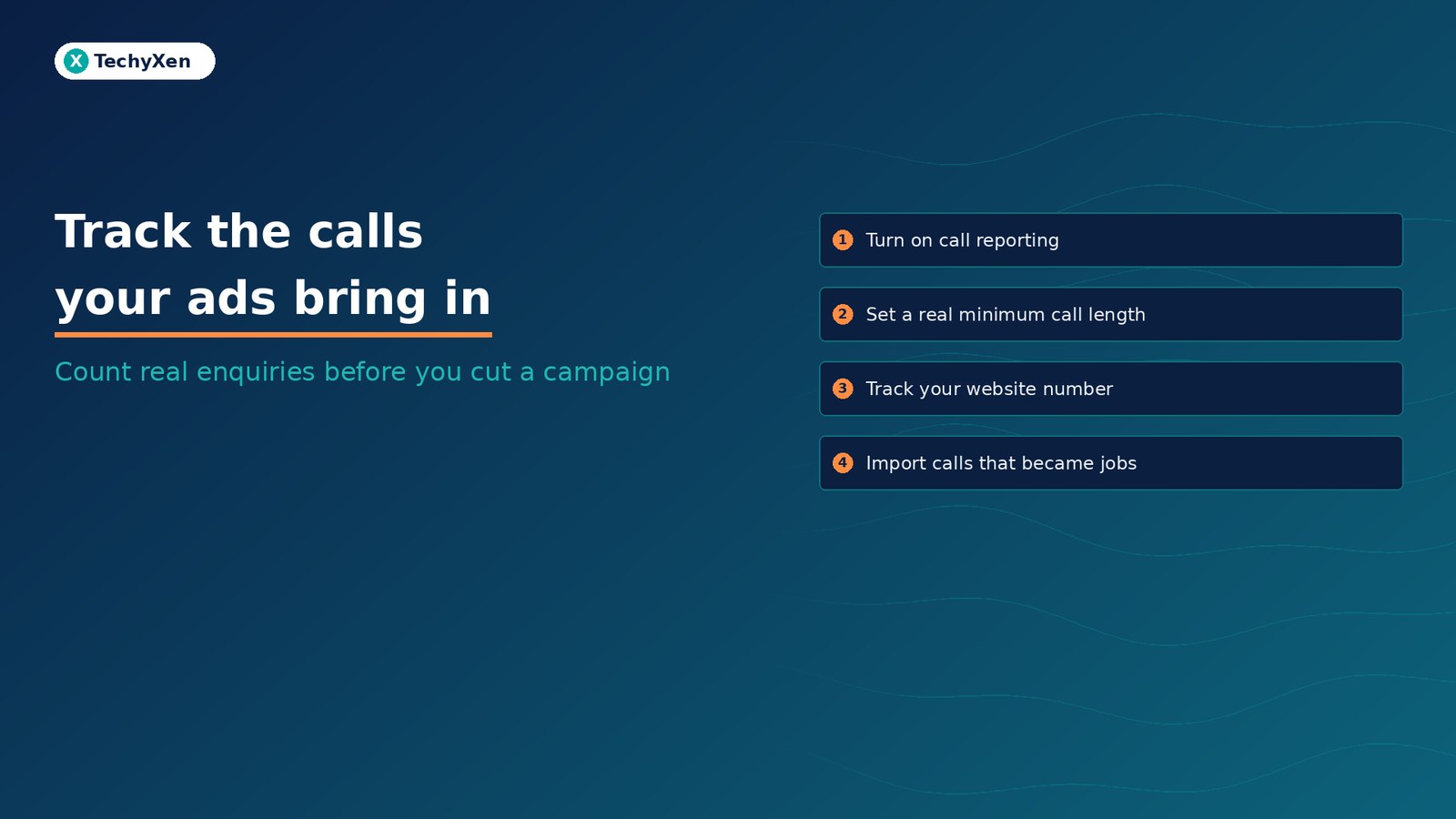
If your phone rings after people see your ads but Google Ads shows few or no conversions, the calls are probably not being counted. Google Ads only reports a call as a conversion when you have set up a call conversion action, turned on call reporting, and told it what a real call looks like. Without that, bidding optimises for form fills alone. Track calls from your ads and from your website number, set a sensible minimum call length, count one lead per click, and send booked jobs back from your CRM before you cut anything.
Why phone calls go missing from your Google Ads reports
Google’s call reporting help page separates two numbers that many owners mix up: phone calls and phone call conversions. A call has no length requirement. A call conversion only counts when it meets the length you set, so Google’s own example shows a 26-second call against a 30-second threshold as 1 phone call and 0 conversions.
Dates differ too: calls are reported on the day they happen, call conversions on the day of the ad click.
The bigger risk is bidding. Google’s page on primary and secondary conversion actions explains that only primary actions feed bidding. If calls are not tracked, or are tracked as secondary, automated bidding has no idea your phone enquiries exist.
A campaign that drives phone enquiries can look like it produces nothing if the only conversion it knows about is a form.
The five ways Google Ads can count a call
Google’s phone call conversion tracking overview lists five options.:
- Calls from ads. Calls made straight from call assets, location assets, or call-only ads. Counted when the call lasts your minimum length.
- Calls to a phone number on your website. Someone clicks your ad, lands on your site, and calls the Google forwarding number shown in place of your normal number. Also counted by call length.
- Clicks on a number on your mobile website. Counts taps on a phone link. Google is clear that this tracks the click only, not whether a call happened.
- Clicks on call ads and assets. Used without a forwarding number; Google estimates whether a meaningful call happened.
- Imported call conversions. You record which calls became sales in your own system, such as a CRM, and upload them.
The first, second, and fifth options need Google forwarding numbers, which are not offered in every country. Check Google’s availability list before you plan your setup.
Turn on call reporting and set a call length that means a real enquiry
Call reporting is an account setting. According to Google’s call reporting settings page, it shows a unique Google forwarding number in your ads and routes each call to your real business line. You then see each call’s time, duration, caller area code, and whether it was answered. Turn it off and Google stops counting calls from ads as conversions.
Three details to know:
- Do not reuse the forwarding number. Google owns it and can reassign it, so keep it off flyers and your Business Profile.
- Phone menus that play audio before connecting (Google calls this “early media”) do not work with call tracking and can show as missed calls.
- Calls from your Business Profile can be reported under calls from ads, but only if the profile is linked to Google Ads, call history is on, and call reporting is enabled, as Google’s calls from ads setup guide explains.
Next, set the minimum call length. Pick the shortest call that is usually a real enquiry. Too short and wrong numbers count as leads; too long and quick bookings disappear. Check a week of durations in the Call details report first.
Google is also adding AI-qualified call leads, which judge calls from recordings. Recording currently works only when both numbers are in the United States or Canada; elsewhere, your call length setting does the filtering.
Track calls to the number on your website, not just taps
Many people click an ad, read your page, then call. Tracking only taps on a phone link misses everyone who dials by hand or calls from a desktop.
Google’s website call tracking guide uses the Google tag plus a phone snippet. The snippet swaps your number for a forwarding number only for visitors who arrived from an ad. Points that are easy to miss:
- The number in the snippet must match the number on your page digit for digit.
- The default tag tracks only one number per page. Several numbers need a custom setup.
- On mobile, the phone link has to be updated too, not only the visible text, or a tap still dials your old number.
- If you use Tag Manager, Google says its standard tag does not handle international formats well, so use the national format without the plus sign.
Count one lead per click and keep taps as secondary
Google’s conversion counting options page explains that “One” counts a single conversion per ad click, which suits leads, while “Every” suits sales. Calls from ads and calls to your website number default to One. Clicks on your mobile number default to Every, so one visitor who taps three times can show as three leads.
A clean setup for most service businesses:
- Primary: calls from ads and calls from your website, both counting One.
- Secondary: mobile tap tracking for observation only, so it does not double count calls.
- Primary, once working: imported calls that became booked jobs, which tell bidding which calls were worth paying for.
A tap on a phone link is an intent signal, not a lead. Count the call, then count the job.
Send booked jobs back from your CRM
Call length tells you a conversation happened. It does not tell you whether it became work. Google’s guide to importing phone call conversions lets you upload calls that led to a sale, with a value, using the caller’s phone number and the call start time with a time zone. Imports must fall within the conversion window (up to 90 days), per Google’s import troubleshooting page. Import support varies by country, so confirm it covers your calls first.
It works best when every call is logged in a CRM with number, time, and outcome. It is the phone version of what we covered in sending qualified leads from your CRM back to Google Ads.
A 20-minute call tracking check before you pause anything
- Open Goals, then Summary, and list every phone call conversion action. Note primary or secondary, and the count setting.
- In Account settings, confirm call reporting is on and check the minimum call length on each call action.
- Add the Call details columns to your campaigns table and compare phone calls with call conversions for the last 30 days.
- Click your own ad (you pay for the click), check that a forwarding number replaces yours on the page, and call it past your minimum length. A new website call action can take up to an hour to switch on; delete the “gwcc” cookie before repeat tests.
- Have whoever answers log every call’s outcome this week, then compare booked jobs with Google Ads.
If calls were missing, give bidding one to two conversion cycles on the corrected data before you judge the campaign again.
Make every call count toward the campaign that earned it
For many service businesses, the phone is still where the money is made. Track it properly and your reports, bidding, and budget decisions reflect the enquiries you actually receive.
TechyXen sets this up as part of full-service growth work: Google and Meta campaigns with call and form conversions measured properly, websites with tracked phone numbers and clear contact paths, and CRM and WhatsApp automation that records every enquiry through to a booked job. Write to [email protected], call +91 92705 93725, or use the links below.
Google Ads and performance marketing · Web development · CRM and automation · Contact TechyXen · WhatsApp · Call

Leave A Comment