
For service businesses that run Google Ads in a fixed area: how the default location option reaches people outside your patch, how to check where clicks really came from, and the settings to fix before you judge lead quality or add budget.
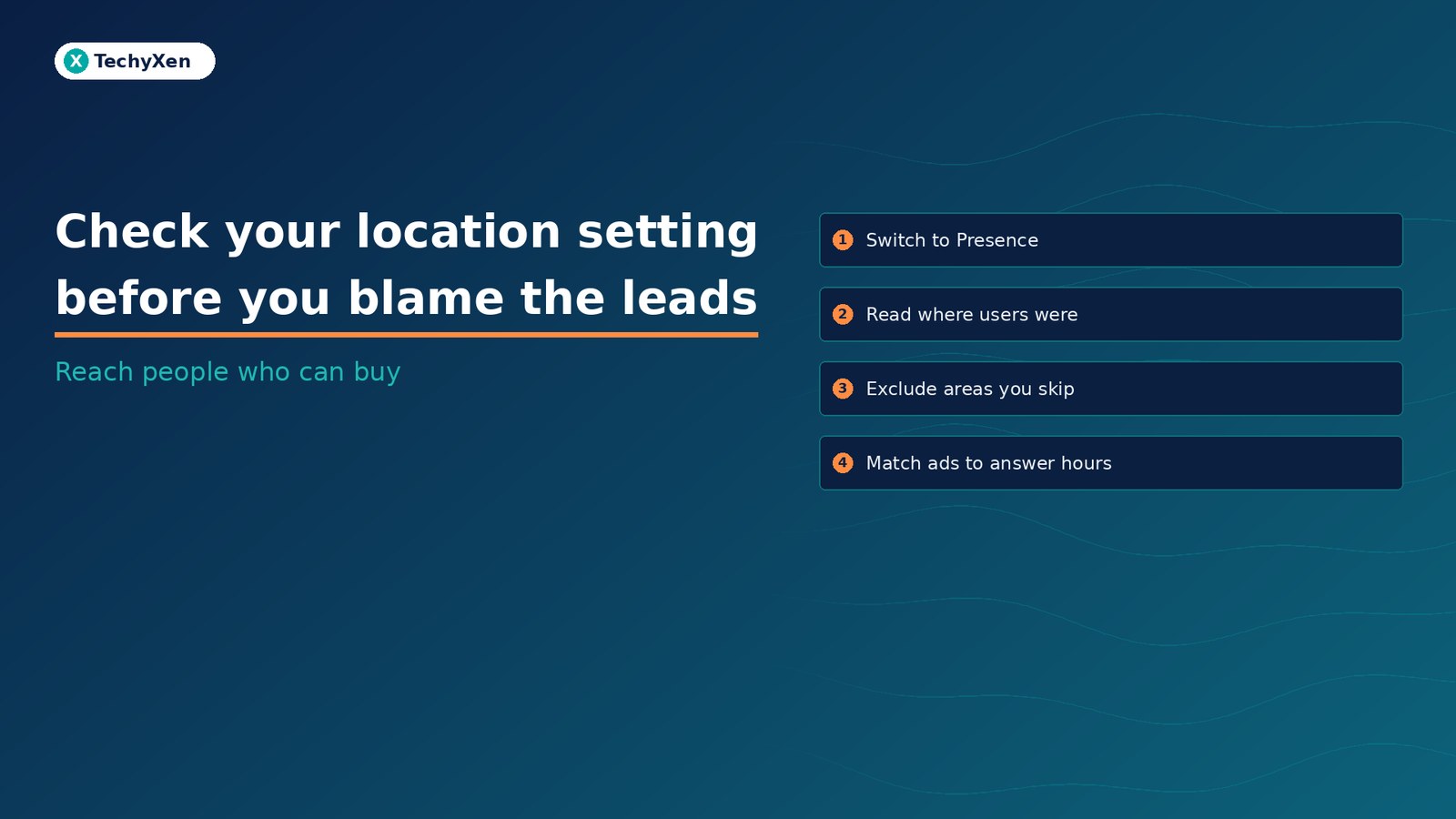
If your ads bring enquiries from places you cannot serve, the problem is often one setting, not the leads. New Google Ads campaigns default to a location option called “Presence or interest”, which can show ads to people outside your chosen area who have simply shown interest in it. For a business that only works in one service area, switch included locations to “Presence”, read the location reports to see where people actually were, exclude the areas you never cover, and align your ad schedule with the hours someone can answer. Then judge lead quality.
What the default location option actually targets
When you add a location to a Search campaign, Google gives you two choices for who counts as being there. Google’s page on advanced location options describes them:
- Presence or interest (default, recommended by Google): people in, regularly in, or who have shown interest in your targeted locations.
- Presence: people in or regularly in your targeted locations.
“Interest” is broader than it sounds. In its overview of targeting geographic locations, Google lists the signals it uses: place names in searches, past searches that indicated a location, a person’s past physical locations, Google Maps searches, and custom search locations. Google also notes that location of interest is not restricted to the person’s country.
That is useful for travel, relocation, or real estate, where people often research a place before they arrive. For a clinic, a repair service, a coaching centre, or any business that needs the customer inside its service area, it can mean paying for clicks from people who will never become customers.
“Presence or interest” is the default. If you only serve one area and never chose this setting, your campaign has been using it all along.
When Presence is the better choice
Google’s own guidance on advanced location options says to consider Presence when you only want to target people in specific locations and not people elsewhere who are interested in them. Its Performance Max best practices for lead generation are more direct: if you receive leads from outside targeted areas, change location targeting from “Presence or interest” to “Presence”.
Choose Presence when:
- You deliver the service in person or within a set radius, and people outside it cannot use you.
- Your sales team keeps flagging enquiries from outside your service area.
- Your budget is small and every irrelevant click takes a meaningful share of the day.
Keep Presence or interest when buyers genuinely research from elsewhere, such as people booking before they travel or relatives arranging a service for family in your area. Google says most campaigns see fewer impressions after switching away from the default. For a local service business, the impressions you lose are mostly the ones that could not turn into work.
To change it, open the campaign, go to Settings, expand Locations, then Location options, and pick Presence under Include. The setting is per campaign, so repeat it for each Search campaign.
Read where people were, not only what matched
Before and after the switch, look at the data. Google separates two views in its guide to matched locations and distance reports:
- Matched locations: performance by the location that matched your ad. Google says this can be a user’s physical location or a location of interest.
- User locations: the predefined Locations report in Report editor shows performance by users’ physical locations regardless of the location used to match the ad, according to the Report editor glossary.
Open Campaigns, then Insights and reports, then When and where ads showed, and select the Matched locations tab. Then build the physical location view in Report editor. If matched locations look on target but user locations show spend from places you do not serve, interest-based matching is the likely cause, and the Presence setting is the fix.
If you use location assets, the distance report in the same guide shows how ads performed at different distances from your nearest business location. It is a quick way to see whether clicks from the edge of your radius ever convert.
A matched location tells you why the ad showed. A user location tells you who actually saw it. Read both before you change budget.
Tighten the area: radius, exclusions and related areas
Presence decides who counts as being in your area. The area itself still needs to fit how you work. Google’s steps to target ads to geographic locations cover countries, areas within a country, and a radius around an address.
- Radius: suits a business that serves customers within a set distance. Google requires at least 1 km and warns that very small targets may show ads only intermittently or not at all.
- Exclusions: use them for parts of a larger area you do not cover. Google’s guide to excluding geographic locations says that if an area is both included and excluded, the exclusion takes priority. Check that an exclusion does not swallow a neighbourhood you actually serve.
- Exclusion option: exclusions default to Presence, which excludes people likely to be located in those areas. Leave that default in place.
Two limits are worth knowing. Google may show ads in nearby, closely related areas, such as suburbs next to a targeted city, when a small area cannot be targeted on its own. And Google states that location targeting is a best effort based on signals like IP address and device location, so 100% accuracy is not guaranteed. Presence makes the leak much smaller. It does not seal it.
Match ad hours to when someone can respond
An enquiry from the right area still goes cold if nobody answers. Use an ad schedule so ads only run while your team can pick up calls or reply to messages, or run outside hours only when an automated reply and a next-morning callback are in place.
- Ads are eligible only during the times you list. Anything not on the schedule does not run.
- Schedules use the account’s time zone, so check it if you serve customers in a different zone.
- You can set up to 6 schedules per day per campaign. A slot that crosses midnight needs one entry for each day.
Review the Ad schedule chart by day and hour after a few weeks. If late-night clicks cost money and never become conversations, cut or reduce those hours before raising the daily budget.
A 15-minute location check before you add budget
Run this on every Search campaign, and on Performance Max if it generates leads:
- Open Settings, then Locations, and confirm the included areas match where you actually work.
- Under Location options, set Include to Presence unless buyers genuinely book from elsewhere.
- Pull the last 30 days of user locations and note the spend outside your service area.
- Add exclusions for areas inside your target you never cover, then check for overlaps.
- Compare the ad schedule with the hours your team answers calls and messages.
Pair this with your weekly search terms review and real conversion stages from your CRM, so you judge campaigns on leads you can serve, not on clicks from anywhere.
Spend on people who can actually become customers
Lead quality problems are often traced to targeting settings nobody chose. Fix the location option, read where clicks came from, set clear boundaries, and only then decide whether the campaign needs more budget or a different offer.
TechyXen handles this as part of full-service performance marketing: Google and Meta campaign setup and audits, landing pages that match the search, CRM and WhatsApp automation so every enquiry is tracked to an outcome, plus SEO and AI search visibility. Write to [email protected], call +91 92705 93725, or use the links below.
Performance marketing · CRM and automation · Web development · Contact · WhatsApp · Call

1 Comment
[…] Check your Google Ads location setting before you blame lead quality […]