
For small business owners who use Google Analytics 4 to decide where the marketing budget goes: four quiet problems that distort your traffic and lead numbers, how to fix each one in Admin, and a short check to run before you read another report.
Before you trust any GA4 report, make sure it is not counting the wrong things. Four problems cause most bad data on small business sites: the same Google tag installed twice, visits from you and your team, payment or booking tools showing up as referral sources, and one customer counted as two people because your site spans two domains. Each has a fix in GA4 Admin, and none takes more than a few minutes. The catch is timing: the filters only work from the day you turn them on, so the sooner you fix them, the sooner your numbers are worth reading.
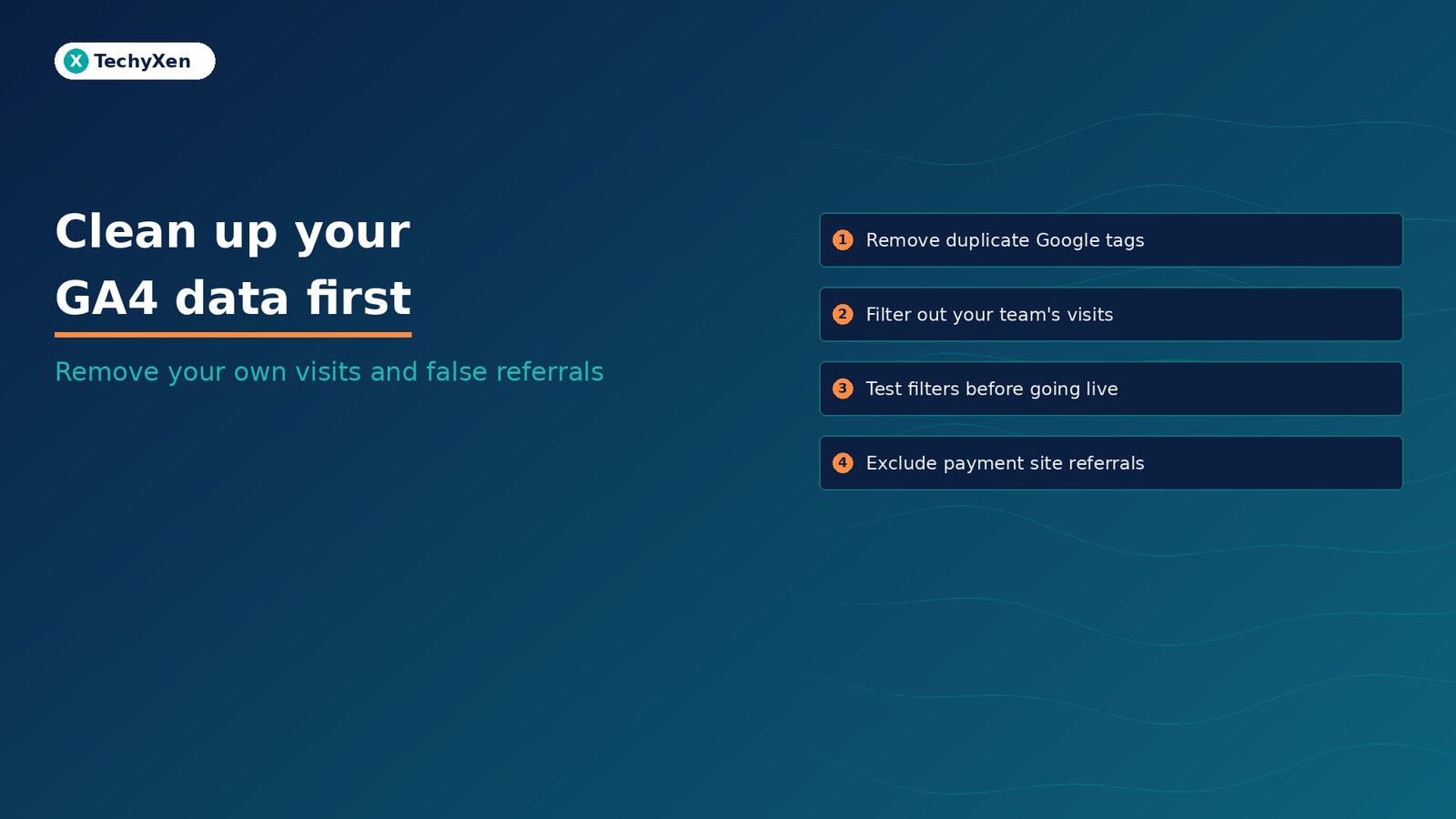
Why your GA4 numbers can be wrong before you read them
GA4 records whatever the tag on your site sends it. If the tag fires twice, you get double page views. If your sales team opens the pricing page twenty times a day, those visits look like interested prospects. If customers pay through a payment gateway and come back to your thank-you page, the sale can be credited to the gateway instead of the ad that brought them.
Small sites feel this most, because a few staff visits a day can be a real share of a few hundred monthly sessions.
Google does clean up one thing for you. Its page on known bot-traffic exclusion says traffic from known bots and spiders is removed automatically, and you cannot turn this off. Everything below is your job.
Check that every visit is not being counted twice
Double tagging is common on WordPress sites: an analytics plugin adds the Google tag, and Tag Manager or a second plugin adds it again. Google’s Google tag management page warns that if the same tag is configured two or more times on a page, it “may cause duplicate data or mixed settings”.
To check:
- Open Tag Assistant at tagassistant.google.com, add your site, and connect. It lists every Google tag it finds. The same G- ID appearing twice, or appearing both on its own and inside a GTM container, means you have a second install.
- Watch DebugView in GA4 Admin while you load one page. Tag Assistant turns on debug mode for your browser, so your events show up. One page load should produce one page_view event, not two.
- Remove the extra install rather than relying on settings to hide it. Google’s developer guide to measuring page views notes that sending page views manually without turning off the automatic ones can create duplicates.
GA4 has a setting called “Ignore duplicate instances of on-page configuration” under Manage Google tag. It is a safety net for repeated configuration, not a reason to keep two installs.
If page views look suspiciously healthy and engagement looks oddly low, count the tags before you celebrate the traffic.
Mark your own team’s visits as internal traffic
Google’s guide to filtering out internal traffic works in two steps. You need the Editor role on the property.
- Define internal traffic. Go to Admin, Data streams, choose your web stream, then Configure tag settings, Show more, and Define internal traffic. Create a rule with the public IP address of your office (the page has a “What’s my IP address?” link). GA4 then adds a traffic_type parameter with the value internal to matching events.
- Create a data filter. Go to Admin, Data filters, Create filter, choose Internal traffic, and set it to exclude events where traffic_type matches the value from step one.
Two limits to know. This only works for website traffic, not app users, and a property can have up to 10 data filters. IP rules also only catch visits from a fixed address, such as an office broadband line. Staff browsing on mobile data or from home on a changing IP will not match, so treat the filter as removing most internal visits, not all of them.
If you or a developer test the site with debug mode on, add a second data filter for developer traffic. Google’s data filters page lists developer traffic, internal traffic, and web hostname traffic as the filter types.
Test the filter before you switch it on
This is the step people skip. The same data filters page says it plainly: once you apply a data filter, the excluded data “is never processed and will never be available” in Analytics or BigQuery. Filters also do not change historical data. They only apply from the moment they are created.
So start every new filter in the Testing state. In testing, GA4 tags matching events with a “Test data filter name” dimension instead of removing them. Then build a free-form exploration with Test data filter name and Event name as rows and Event count as the value. If your own visits appear under the filter name, the rule works.
Google says a filter can take 24 to 36 hours to apply, so check back the next day before you change the state to Active. To hide data from a report without deleting it, Google recommends report filters instead.
A wrong exclude filter does not hide data. It deletes it from that day on, with no undo.
Stop payment tools and second domains splitting your visits
If customers pay on a gateway’s page, book through a scheduling tool, or reset a password from an email link, GA4 may record that domain as the source of their return visit. The sale is then credited to the payment page, not the ad that started the journey.
Google’s page on identifying unwanted referrals covers exactly this case, naming third-party payment processors as the common example. The fix is in Admin, Data streams, your web stream, Configure tag settings, Show all, then List unwanted referrals. Add each domain, such as your gateway’s checkout domain, and save. You can list up to 50 per stream.
Users who arrived from that domain before you added it can keep showing it as their source on later visits, so give the change a few weeks.
- Do list: payment gateways, hosted checkout pages, booking and scheduling tools, and login or password reset domains you control.
- Do not list: real referral sources such as directories, partner sites, or social networks. Those are traffic you want to see.
If your main site and your shop, booking page, or landing pages live on different domains, GA4 sets new cookies on each one. Google’s cross-domain measurement guide explains that one visitor moving between two root domains is counted as two users and two sessions.
To fix it, make sure every domain uses the same G- tag from the same web data stream, then add each domain under Configure tag settings, Configure your domains. To confirm it works, click a link from one domain to the other and check that the destination address contains the _gl parameter.
A 30-minute GA4 clean-up check
- Run Tag Assistant on your home page and one service page. Note every G- and GTM- ID and remove any duplicate install.
- Load one page with DebugView open and confirm a single page_view event.
- Define internal traffic for every fixed office IP, then create an internal traffic filter in Testing.
- Add a developer traffic filter in Testing if anyone works on the site with debug mode on.
- List your payment, checkout, and booking domains as unwanted referrals.
- If you use more than one domain, set up cross-domain measurement and test for the _gl parameter.
- Next day, check the Test data filter name exploration, then switch the filters to Active and write the date down.
That date matters. Any comparison that spans it mixes old and cleaned data, so judge campaigns on the period after it. Once the data is clean, set up GA4 key events so you measure enquiries, not just visits.
Get reports you can make budget decisions on
Clean analytics is the difference between cutting the campaign that brings in work and cutting the one that does not.
TechyXen handles this as part of full-service growth work: GA4, Tag Manager, and conversion tracking set up and audited, Google and Meta campaigns measured against real enquiries, websites built with clean tagging and clear contact paths, and CRM and WhatsApp automation that records every lead through to a sale. Write to [email protected], call +91 92705 93725, or use the links below.
Google Ads and performance marketing · Web development · CRM and automation · Contact TechyXen · WhatsApp · Call

1 Comment
[…] from the date your rule went live. If visits still look inflated, check the basics in our guide to cleaning up GA4 data […]