
For business owners whose site shows spam pages, a “This site may be hacked” label or a Security Issues warning in Google: how to contain the hack, find every injected page, close the hole and get a review approved.
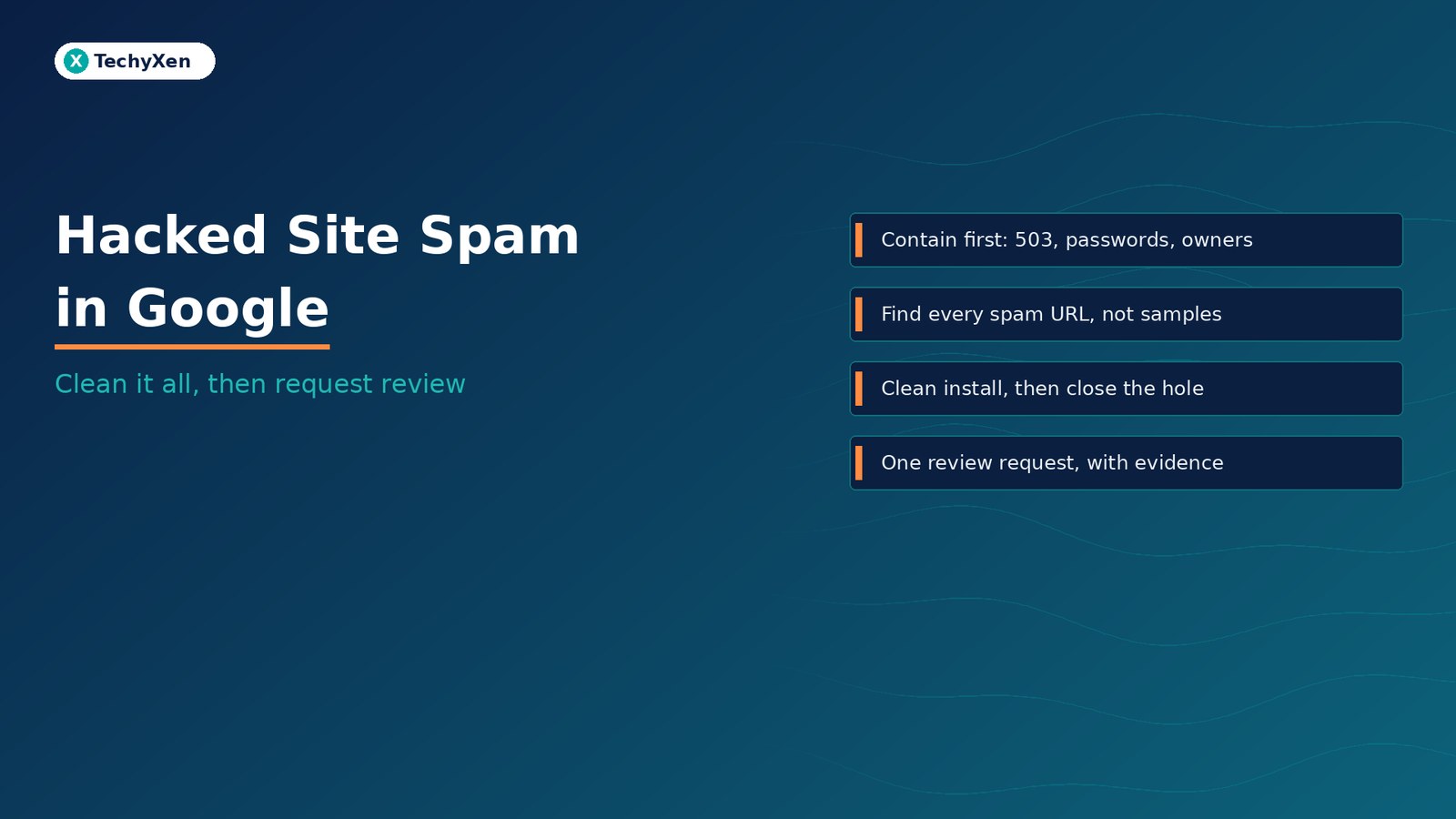
If Google is showing spam pages under your domain, the fastest way back is a complete cleanup, a fix for the hole the attacker used, and only then a single review request in Search Console. Google’s Security Issues report help is blunt about it: fixing the issue on just some pages will not earn you a partial return to search results, and requesting a review before everything is fixed can slow the next review or get you marked as a repeat offender. Most of the lost time in a search-spam hack comes from half-cleanups and premature review requests. This guide sets out the order that avoids both.
How to tell your site was hacked for search spam
Search-spam hacks are built to stay invisible to the owner. The attacker wants Google to index pages that earn them money, so the clues usually show up in Google before they show up on the site.
- A warning in Search Console. The Security issues report lists hacked content, malware and social engineering that Google has found, with a sample of affected URLs and the date the issue was first detected.
- A label in search results. Google’s recovery guide on web.dev says sites hacked to host spam often show “This site may be hacked” in results. Malware infections show “This site may harm your computer” instead.
- Pages you never created. A
site:yourdomain.comsearch reveals pharmacy, fake-brand or gibberish pages, often in random folders such as/ltjmnjp/341.html. - A new owner in Search Console. Google notes that attackers often verify themselves as owners to submit their own sitemaps. An email saying someone you don’t know verified your site is a strong sign of a hack.
- Redirects only some visitors see. Google’s spam policies describe redirects that depend on the referrer, user agent or device. A visitor arriving from a Google result is sent to a spam site, while you, typing the URL directly, see a normal page.
Don’t trust a page that looks fine or returns “not found” in your browser. Hackers cloak spam so only Googlebot sees it. URL Inspection in Search Console shows the page as Google fetched it.
Security issues or manual action: read the right report
Search Console has two reports that can both mention spam, and they lead to different fixes. Google’s Manual actions report help explains the difference.
- Security issues covers signs that the site was hacked or could harm visitors: hacked content, malware and deceptive pages such as phishing. Affected pages can carry a warning label in results or a full-page browser warning.
- Manual actions covers issues a Google reviewer found that are mostly attempts to manipulate the search index. These usually lower rankings or drop pages from results without any visible warning.
A hacked site can appear in both, so check both. Each has its own Request Review button, and every listed issue must be fixed on every affected page before you press it.
“The sample URLs in Search Console are a starting point, not the full list. Fix only the pages Google showed you and the warning stays.”
Contain the hack before you clean anything
The instinct is to start deleting spam pages. Google’s quarantine guidance and its cleanup guide for the Japanese keyword hack start elsewhere: protect visitors, lock the attacker out and keep the evidence.
- Back up the infected site first. Copy all files and the database off the server and label the copy “infected”. You’ll need it to compare with a clean backup and to recover mistakes.
- Take the site offline if visitors are at risk. Google suggests serving a 503 page from outside the compromised server, for example through your host. It says going offline temporarily during recovery is unlikely to affect future rankings. A
robots.txtblock is not enough, because it only stops crawlers, not people. - Tell your hosting provider. They can set up the 503, check other sites on the server and share logs.
- Audit every account. Note and delete admin users you don’t recognise, then change every password: hosting, FTP or SFTP, database and CMS.
- Remove unknown Search Console owners. Check the owner list under Settings. Google’s owner management help explains that removing a verified owner’s token is what unverifies them, so delete the attacker’s verification file, meta tag or
.htaccessrewrite rule as well as the user.
If the attack collected customer details, for example through a fake login page, Google advises considering your business, regulatory and legal obligations before you delete files.
Find every spam page and injected file, not only the samples
Google’s hacked-site guides list where spam usually hides. Check all of them, because one campaign often uses several.
- Google’s own index. Search
site:yourdomain.com, then narrow it with spam terms (site:yourdomain.com pharmacy,casino, brand names) and with folders that should never be indexed, such assite:yourdomain.com/wp-admin/. - Server configuration. Hackers use
.htaccessrules to redirect visitors and generate spam pages. Unless you wrote custom rules, Google suggests replacing every.htaccesswith a clean default. - Sitemaps. Attackers edit sitemaps or add new ones to get spam indexed faster. Remove spam entries and delete sitemaps you didn’t create.
- Recently changed and oversized files. Sort files by date modified and size. Google names
index.php,wp-load.php,404.phpandview.phpas common injection targets, and suggests searching for obfuscated code that useseval,base64_decode,gzinflate,rot13orstrrev. - The database. Look for text fields that now contain scripts or iframes. Database injections survive a file restore.
- Responses that change by visitor. Fetch a suspect URL twice, once plainly and once as if arriving from Google, and compare:
curl -sI https://example.com/suspect-page/
curl -sI --referer "https://www.google.com/" https://example.com/suspect-page/
A redirect only in the second response is cloaking. Google’s security issue guidance prefers cURL, wget or URL Inspection to opening infected pages in a browser, which malware can attack. Keep every damaged URL and file in one list; you’ll need it again for the review request.
Clean from a known-good copy and close the hole
Google’s clean and maintain guide sets out three paths, depending on the backup you have. Check first that the backup was made before the hack started.
- Clean, current backup: restore it, apply every update, remove unused software, fix the vulnerability and change passwords again.
- Clean but outdated backup: keep a copy of the infected site, restore the old backup, update everything, then bring across only new content you’ve confirmed is clean.
- No clean backup: make two copies of the infected site, clean one offline, file by file and record by record, then put it back.
Google recommends a clean installation, not just an upgrade, of the CMS, ecommerce platform, plugins and themes, because upgrades can leave infected files behind. On WordPress, that means fresh copies downloaded only from wordpress.org and the official plugin and theme directories.
Then find the way in. Google’s guide to identifying the vulnerability lists the usual causes:
- Out-of-date software with a published security advisory, including plugins and themes nobody remembered to update
- Weak or reused passwords, often visible in server logs as repeated login attempts
- A virus-infected admin computer leaking credentials, so scan every device used to sign in
- Open redirects that let anyone bounce visitors from your domain to another site
- SQL injection through form fields that write unvalidated input to the database
Google also warns that a site can carry several independent hacks, so keep looking after you find the first one.
“Deleting spam pages removes the symptom. Patching the plugin, password or form the attacker used is what stops the spam from coming back.”
Clear the spam from Google without removing good pages
Clean files don’t clear Google’s index. How you handle the leftover spam URLs decides how fast results look normal again.
- Return a real 404 for spam URLs. Google says deleted spam pages that return a 404 will drop out of the index over time. A spam URL that redirects to your home page or returns 200 with an error message is a soft 404, not a removal.
- Use the Removals tool for urgent, never-wanted URLs. The Removals tool temporarily hides URLs from Google Search, but a successful request lasts only about six months and doesn’t stop crawling. Pair it with a 404 so the page doesn’t come back.
- Never use Removals on your own pages that were only damaged. Clean them and request recrawling in URL Inspection instead.
- Don’t block spam URLs or cleaned pages in robots.txt. Google has to crawl them to see that they’re gone or fixed. The Manual actions help says affected pages must not require a login, sit behind a paywall or be blocked by robots.txt or
noindexwhen you ask for review. - Keep only your real sitemap. Delete any sitemap the attacker submitted in Search Console.
Write a review request Google can approve
When every issue is fixed on every page, select Request Review in the Security Issues report. Google says a good request explains the exact issue, describes your fixes and documents the outcome.
Google’s request a review guide suggests one short explanation for each category of hacked spam. A request for a typical WordPress hack might read:
- What happened: “URL injection created spam pages under random folders, and content injection added hidden links to our product pages.”
- What we fixed: “Removed the spam pages, which now return 404; restored theme and plugin files from clean copies; cleaned injected database records; removed an unknown Search Console owner and its verification file.”
- How we closed the hole: “The entry point was an outdated form plugin. We updated it, removed unused plugins, reset every password and turned on two-step verification.”
- How we checked: “Sampled URLs return clean responses in URL Inspection and with a Google referrer in cURL.”
Then wait. Google’s guide gives these typical review times:
- Hacked with spam: up to several weeks, as these can involve manual investigation
- Malware: a few days
- Phishing: about a day
If Google finds the site clean, it says warnings are removed within 72 hours. If not, the report may show new sample URLs. Don’t send a second request while one is pending.
Keep the site clean after the warning lifts
Recovery is finished only when the same attack can’t work twice. Google’s maintenance advice and the WordPress hardening guide come down to a short routine:
- Automated, off-server backups of files and database, with a restore you’ve actually tested
- Updates on a schedule for the CMS, plugins and themes, with unused ones deleted rather than deactivated
- Strong, unique passwords and two-step verification on hosting, CMS, domain registrar and Search Console
- The WordPress file editor disabled with
define( 'DISALLOW_FILE_EDIT', true );inwp-config.php, so a stolen admin login can’t rewrite theme or plugin code from the dashboard - Search Console alerts sent to an inbox someone reads, plus a monthly check of Security Issues, the owner list and a
site:search
Treat a hacked-spam warning as a site incident, not an SEO glitch: contain it, clean everything, close the gap, then ask for one review with evidence. If your site is flagged and you can’t find the way in, TechyXen can clean and rebuild it from a known-good state, harden hosting and logins, and handle the Search Console review as part of a website build or maintenance plan. Write to [email protected] or use the links below.
Web development · Contact · WhatsApp · Call

Leave A Comment