
A practical guide for online store owners: how Google’s free product listings work, the feed and markup mismatches that get products disapproved, and the store checks to finish before you spend anything on Shopping ads.
Google will show your products for free across Search, the Shopping tab, Google Images, Lens, YouTube, Maps and Gemini through Merchant Center free listings, but only when your product data is accurate and your store passes Google’s trust checks. According to Google Merchant Center Help, new accounts are opted in to free listings by default. Being opted in still doesn’t guarantee your products will show. When products stay invisible, it usually comes down to a short list of fixable problems: prices that don’t match the page, missing product identifiers, promotional product photos, and missing contact, shipping or return details. Fix those first and the free channel works. Skip them and paid Shopping ads hit the same disapprovals anyway.
What free listings are, and where your products can appear
A free listing is a product result that Google builds from data you give it: title, image, price, availability, shipping and returns. Shoppers who click it land on your product page to buy. You pay nothing per click or impression.
Google’s help documentation lists the surfaces where eligible products can show:
- The Shopping tab on Google Search, including free local listings for in-store stock if you opt in
- Rich results in regular Search, showing price, availability and reviews under your link
- Google Images and Google Lens, where purchasable products get a “Product” label
- YouTube, Google Maps, Gemini and the products module on a Business Profile
Two limits matter. Free listings only promote product pages. Your home page, category pages and policy pages don’t qualify. And the on/off status in Merchant Center is only permission to show. Google says it relies on the data you provide to match products with what people search for.
Google reads two inputs: your product feed and your page markup
Google’s introduction to Product structured data describes two ways to supply product data. You can upload a feed to Merchant Center, or you can add Product structured data (schema.org markup) to your product pages. Google says that providing both maximises your eligibility and helps it verify your data, because some experiences combine the two sources.
For pages where shoppers can actually buy, the relevant markup is merchant listing structured data. The basics:
- Required:
name,imageand anoffersblock of typeOffercontainingpriceandpriceCurrency. Merchant listings need a price greater than zero, and you must be the seller. A page that only links to another store doesn’t qualify. - Recommended:
availability,brand,gtinormpn,sku,itemCondition,shippingDetailsandhasMerchantReturnPolicy. - One product per page. Product rich results support pages focused on a single product or its variants, not pages that list a whole category.
- Put the markup in the initial HTML. Google warns that markup generated by JavaScript can make Shopping crawls less frequent and less reliable, which is a problem for prices and stock that change often.
Many WooCommerce and Shopify themes and SEO plugins output some Product markup automatically, but it can be incomplete, for example with no brand, identifiers or availability. Run a few product URLs through the Rich Results Test before you assume the theme has it covered.
“Your feed, your markup and your product page must show Google the same price and the same stock status. When they disagree, the product can be disapproved.”
The disapprovals that keep products off Google
When products don’t show, Merchant Center usually says why on the Needs attention tab of the Products page. These five causes come up again and again on small stores.
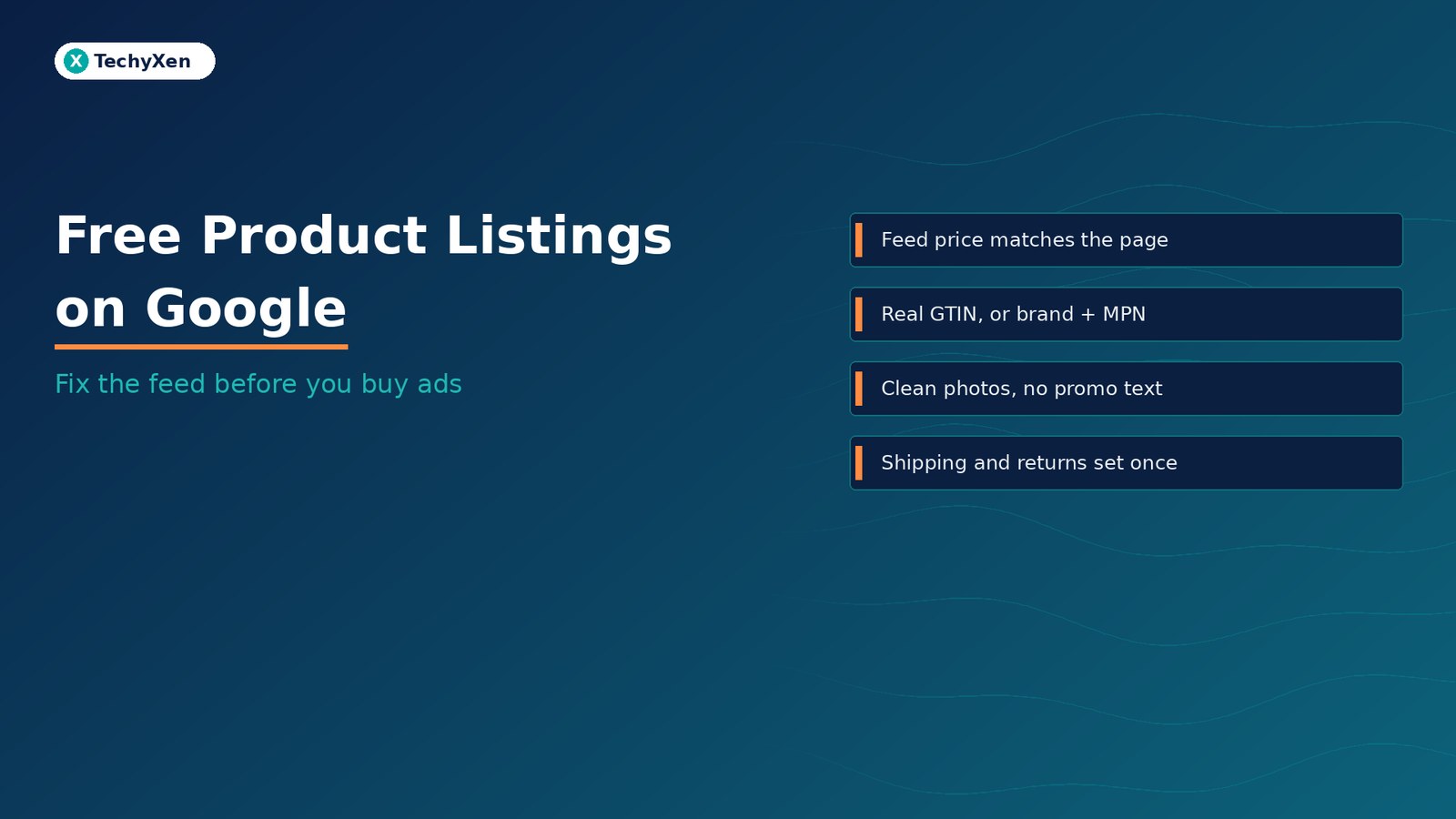
- Price mismatch. Googlebot compares the price in your feed with the price on the landing page and in its markup. Google’s price mismatch guide says a mismatched product may be disapproved, and that prices loaded by JavaScript after the page renders will trigger the error. Once fixed, the product is rechecked over the next few hours or days.
- Availability mismatch. A product listed as in stock in the feed but sold out on the page is treated as a critical error, and Google says repeated mismatches can lead to account suspension.
- Wrong or invented identifiers. Google’s guide to unique product identifiers says you should never make up or guess a GTIN. A product that has a GTIN but is submitted without one may get limited visibility. If you make the product yourself or sell a store brand, use your store name as the brand and an MPN of your choice.
- Promotional or placeholder images. The image link requirements rule out text such as “Free shipping” or “Buy now”, watermarks, added logos, borders and “coming soon” placeholders on the main image. Google has also announced a minimum size of 500 × 500 pixels for all products from 31 January 2027, and it recommends around 1500 × 1500 pixels.
- Missing contact or policy information. Google’s misrepresentation fix guide names missing contact details, business details that don’t match Merchant Center, unclear shipping or return policies, placeholder text and broken links as common reasons for suspension.
Make the store pass a trust review before you submit
Most stores don’t lose their free listings over one bad product. They lose them in an account-level review of the website. Google’s checkout requirements and its onboarding and review checklist set out what the store itself must do:
- Secure checkout. Signup and checkout pages need a valid SSL certificate, and any third-party payment step must be HTTPS too.
- Anyone can buy. Business fields such as company name must be optional, and shoppers must be able to check out as a guest or verify with a one-time passcode.
- Stock that is really buyable. If a product shows as in stock in a listing, a shopper must be able to add it to the cart and finish the order.
- Visible contact details. Your business name, address and phone number should be identical in the footer, the contact page and Merchant Center.
- A complete return and refund policy. State the return window, the return method, who pays for return shipping and when refunds are processed. A one-line “hassle-free returns” claim isn’t enough.
- Clear shipping terms. List handling and transit times on product or checkout pages, and make sure they match your Merchant Center shipping settings.
Google also says that leaving out relevant information counts as misrepresentation, and that you can’t contact support to speed up a free listings eligibility decision. That makes it much cheaper to fix the store first than to appeal later.
“Free listings are earned with clean data and a trustworthy store, not with a bid. Every fix you make here also protects the Shopping ads you might run later.”
Connect your platform instead of hand-building a feed
A spreadsheet feed works for a dozen products, but it goes stale the moment prices change. On mainstream platforms, a direct connection keeps Merchant Center in step with the store.
- Shopify: the Google & YouTube channel syncs your products and store information to Merchant Center, and you can edit the product feed from Shopify.
- WooCommerce: Google for WooCommerce syncs your catalogue and flags account and product issues inside WordPress. Its documentation notes that Google removes a product from a feed if it hasn’t been updated in 30 days, and the extension resubmits expiring products for you.
- Other platforms: Merchant Center can link supported ecommerce platforms directly. Google says it may take up to 3 days for all products to appear, and it recommends managing products in the platform rather than in Merchant Center.
- Custom stores: use a scheduled feed or the Merchant API, and push updates right after prices or stock change on the site, not on a weekly timer.
Then turn on automatic item updates for price, sale price, availability and condition. Google uses your landing page data to correct occasional mismatches. It’s a safety net, though, not a substitute for a live feed. Google says it may not work for products whose price or availability changes more than once a day.
Set shipping and returns once, at account level
Shipping costs and return terms change whether people buy. Google displays them next to listings, and Merchant Center requires shipping settings, or a shipping attribute in the feed, in a long list of countries.
Set a standard policy once instead of on every product:
- Configure shipping rates and delivery times, plus your return policy, in Merchant Center settings. Google notes that account-level policies can also be set in Search Console and are added to Merchant Center automatically.
- On the website, nest a MerchantReturnPolicy and a shipping policy under your
Organizationmarkup. Use product-level markup only for items that are genuine exceptions. - Know the order of precedence. Google ranks product-level feed data highest, then Content API settings, then Merchant Center or Search Console settings, then product-level markup, and organization-level markup last.
A one-week launch checklist for free product listings
- Day 1 — audit the store. Check contact details, policy pages, HTTPS checkout and guest checkout. Remove placeholder text and fix broken links.
- Day 2 — check the markup. Test five product URLs in the Rich Results Test. Confirm that price, currency and availability are in the initial HTML and match what shoppers see.
- Day 3 — connect the catalogue. Link Shopify, WooCommerce or your feed to Merchant Center, and verify and claim the website.
- Day 4 — fill in identifiers. Add real GTINs from packaging or the manufacturer. For your own products, set brand plus MPN, and leave GTIN blank where none exists.
- Day 5 — fix images. Replace main images that carry promo text, logos, borders or watermarks with clean product shots of at least 500 × 500 pixels, and give each variant its own image.
- Day 6 — set shipping, returns and automations. Add account-level shipping and return policies and turn on automatic item updates.
- Day 7 — review and monitor. Work through the Needs attention tab, check the Merchant listings report in Search Console, and filter the Merchant Center Performance page by free listings to see clicks.
Get listed for free before you pay for clicks
Free listings reward the same things that make a store convert: honest prices, real stock, clear photos and policies a shopper can trust. Make your feed, your markup and your product pages agree, connect the catalogue so it stays in sync, and clear every item in Needs attention. Then decide whether paid Shopping campaigns are worth adding on top.
If your store has hundreds of disapproved products, missing identifiers or a theme that loads prices with JavaScript, TechyXen can fix the catalogue, the markup and the Merchant Center setup as part of a full ecommerce build or audit. Write to [email protected] or use the links below.
Ecommerce solutions · Contact · WhatsApp · Call

Leave A Comment