
For online store owners on Shopify, WooCommerce or a custom build: how to check the Product markup your pages already send Google, add the fields merchant listings require, and keep price and stock in step with what shoppers see.
Google can only show your price, stock status and ratings in search if your product pages describe them in a way it can read. That is the job of Product structured data. For a page where people can buy, Google’s merchant listing rules require three things: the product name, an image and an Offer with a price above zero. Many store themes output some of this automatically, but often with gaps, such as an empty description, a missing brand or a price that no longer matches the page. Check what your pages send before you assume Google has what it needs.
What Product structured data does for a store
Structured data is a block of code, usually JSON-LD, that labels the facts on a page. On a product page it tells Google the product name, price, currency, availability, brand and reviews in a fixed format.
According to Google’s introduction to Product structured data, this can make product details appear in richer ways across Google Search, Google Images and Google Lens, including:
- Product snippets: a text result with ratings, price and availability.
- Shopping knowledge panel: detailed product information with a list of sellers.
- Google Images: product photos annotated as available for sale.
- Enhancements: shipping costs, return information and, at Google’s discretion, price drops.
None of this is guaranteed. Google says rich results are shown at the discretion of each experience. But without readable markup, your pages are not in the running.
Pick the right type: merchant listing or product snippet
Google splits product markup into two classes, and the right one depends on whether people can buy on the page:
- Merchant listings are for pages where customers can purchase from you. They support detail such as sizing, shipping and return policy.
- Product snippets are for pages where people cannot buy directly, such as an editorial review or comparison page.
If you run a store, use merchant listing markup. Google notes that adding the required merchant listing properties usually makes the page eligible for product snippets too. Two technical rules catch many stores out: product rich results only support pages that focus on a single product or its variants, so category and collection pages are not eligible, and pages that only link to another site that sells the product are not eligible either.
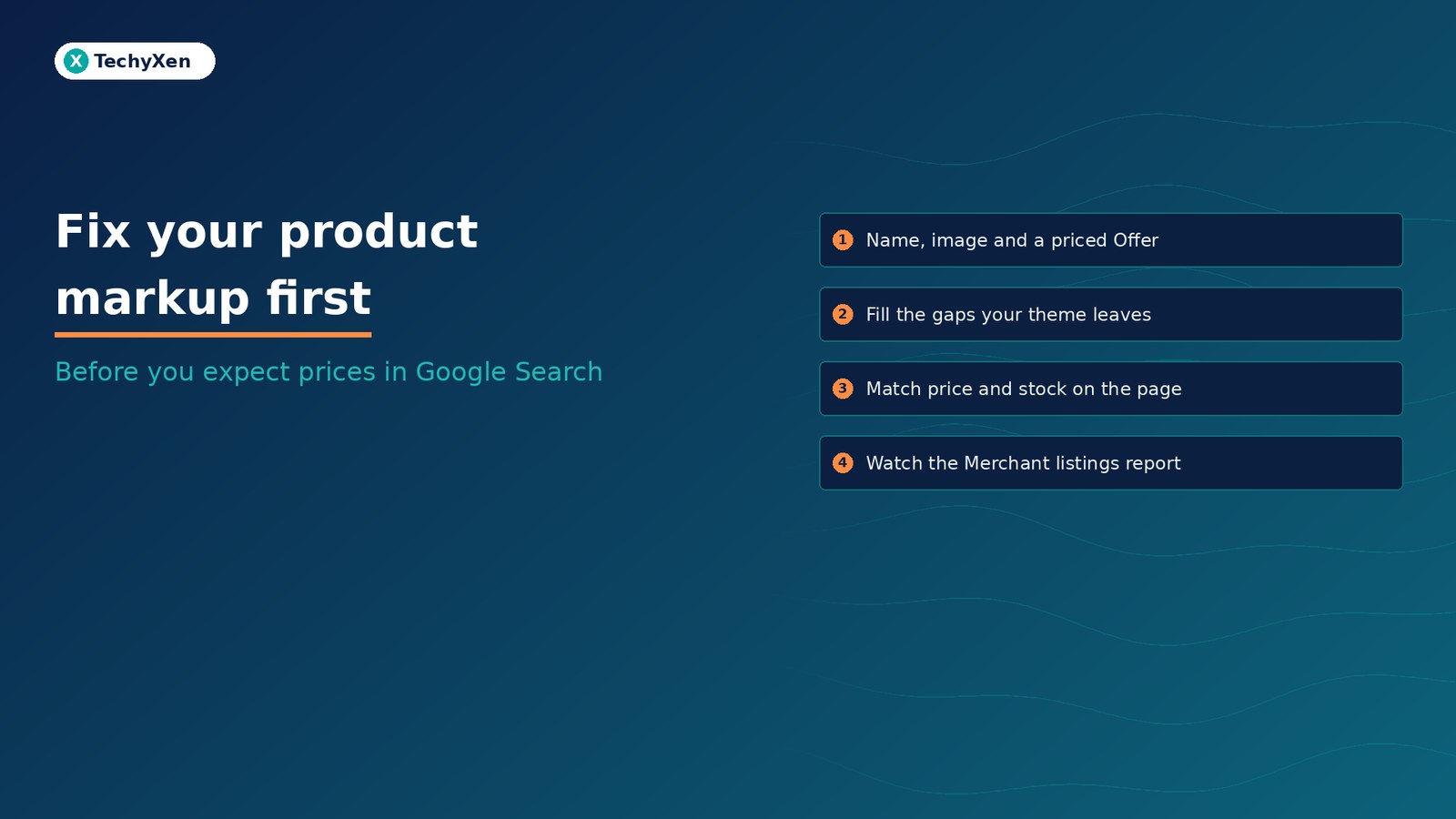
Name, image and an Offer with a price above zero. Without all three, a product page is not eligible for merchant listings.
The fields Google needs, and the ones worth adding
Google’s merchant listing documentation sets out the required properties:
- name: the product name.
- image: a crawlable product photo. Google prefers images that clearly show the product and recommends several high-resolution images.
- offers: an Offer with
priceandpriceCurrency. Unlike product snippets, merchant listings need a price greater than zero.
Then add what you actually know. These recommended fields give Google more to work with:
- availability such as InStock, OutOfStock, PreOrder or BackOrder.
- description, which Google calls strongly recommended even though it is optional.
- brand.name, with at most one brand.
- gtin, mpn or sku. Google recommends the most specific GTIN that applies, and a
skuwith no spaces. - itemCondition for new, used or refurbished stock.
- aggregateRating and review, only if the reviews are real and shown on the page.
A minimal block looks like this:
{
  "@context": "https://schema.org",
  "@type": "Product",
  "name": "Cold brew coffee concentrate 500 ml",
  "image": ["https://example.com/photos/cold-brew-1x1.jpg"],
  "description": "Ready-to-dilute cold brew, makes 10 cups.",
  "sku": "CB-500",
  "brand": { "@type": "Brand", "name": "Example Roasters" },
  "offers": {
    "@type": "Offer",
    "price": 18.00,
    "priceCurrency": "USD",
    "availability": "https://schema.org/InStock",
    "itemCondition": "https://schema.org/NewCondition"
  }
}
For shipping and returns, Google recommends one store-wide shipping policy and return policy nested under your Organization markup, with product-level policies used only to override them. If you sell sizes or colours, follow the product variant guide so Google groups them correctly.
Check what your theme or plugin already outputs
Most store platforms add some Product markup for you, so the first job is to see what it contains, not to paste in a second copy. Shopify, for example, provides a Liquid structured_data filter that outputs a schema.org Product for a product with no variants and a ProductGroup for one with variants. Its documented sample output shows description and category as empty strings, which is exactly the kind of gap worth filling in the product admin.
To check your own pages:
- Run a live product URL through the Rich Results Test. It shows which items Google detects, plus critical errors and non-critical warnings.
- Look for duplicates. A theme, an SEO plugin and a reviews app can each add their own Product block with different prices or ratings. Keep one complete source.
- Test a variant, a sale item and an out-of-stock item, not just your best seller. These are where prices and availability most often go wrong.
- Use the Schema Markup Validator for general schema.org syntax beyond what Google’s test covers.
Google also recommends putting Product markup in the initial HTML. If your store adds it with JavaScript, its JavaScript guidance applies, and the merchant listing page warns that dynamically generated markup can make Shopping crawls less frequent and less reliable for fast-changing price and stock data.
Keep markup in step with what shoppers see
Valid code is not enough. Google’s general structured data guidelines say not to mark up content that is not visible to readers, and list content hidden from the user and misleading markup as reasons a rich result may not appear. In practice:
- The price in the markup must match the price on the page, including after a sale starts or ends.
- Do not leave an expired
priceValidUntil. Google says your listing may not display if that date is in the past. - Mark up only reviews shown on the page, and all of them, never ratings copied from elsewhere.
- Update availability when stock runs out rather than leaving every product as InStock.
- Use one URL per currency if you sell in more than one, as Google’s technical guidelines require.
Markup that disagrees with the page is worse than a gap. Price, stock and reviews in the code must match what a shopper sees.
Watch the Merchant listings report after you fix it
Once Google has recrawled your pages, Search Console shows the results. Google lists two reports for Product markup: Merchant listings for pages where shoppers can buy, and Product snippets for other product pages such as reviews. The rich result report overview explains how to read them.
- Fix invalid items first, then inspect a live URL to confirm the issue is gone.
- Request validation from the report so Google rechecks the affected pages.
- Recheck after every theme or app change. A sudden drop in valid items often means a new template stopped printing the markup.
- Keep your sitemap submitted so Google finds new and changed product pages.
Structured data works alongside a Merchant Center feed, not instead of it. Google says providing both maximises eligibility and helps it verify your data. If you have not set up a feed yet, start with our guide to Google free product listings.
Give Google product data it can trust
Clean Product markup is a one-time fix with a lasting payoff: one complete block per product page, the required name, image and priced Offer, honest availability and reviews, and a regular look at the Merchant listings report. It gives your products a fair chance at the richer results shoppers compare before they click.
TechyXen builds and fixes this as part of full-service growth work: Shopify, WooCommerce and custom stores built with correct markup and clean measurement, Google Shopping and Meta campaigns tracked against real sales, and CRM and WhatsApp automation that follows each order and enquiry. Write to [email protected], call +91 92705 93725, or use the links below.
Web development · Performance marketing · CRM and automation · Contact TechyXen · WhatsApp · Call

2 Comments
[…] page should point at the product photo, not the store logo. If you sell online, our guide to Product structured data covers the image field Google requires for merchant […]
[…] Fix your product structured data before you expect prices in Google […]