
For service businesses running Google Search ads: a weekly Search terms report routine so you cut irrelevant queries, protect brand traffic, and only raise budget after the waste is gone.
Raising the Search budget while you still pay for irrelevant queries just buys more of the same waste. Google Ads shows the real words people typed in the Search terms report. Review that report every week, mark clear junk as negatives, promote proven buyers into exact or phrase keywords, and keep brand traffic in its own lane. Do that before you touch the budget slider.
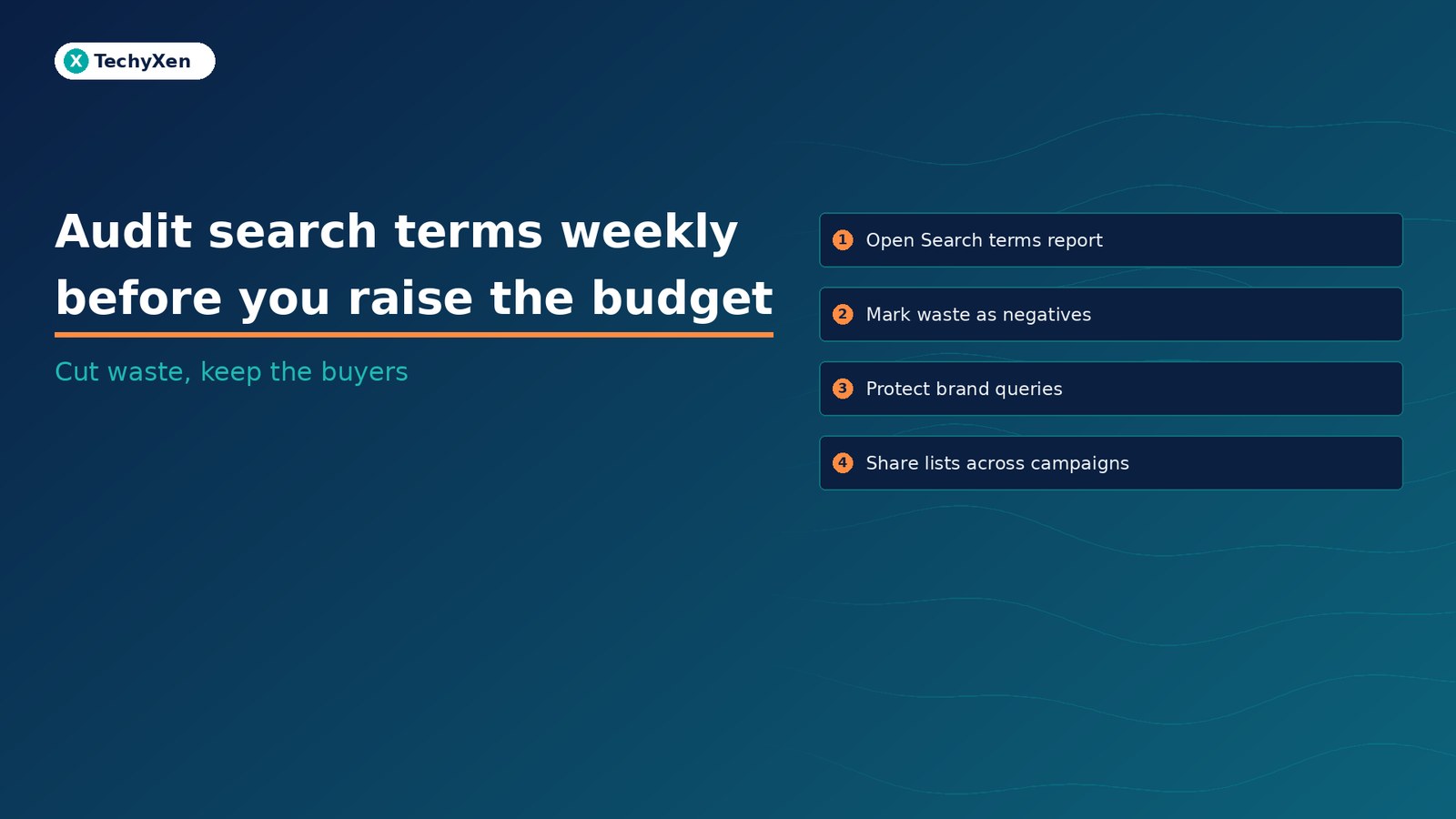
Why a bigger budget on dirty search terms costs more than it grows
Smart Bidding and higher daily budgets do not invent better intent. They spend toward whatever is already triggering your ads. If jobs, free templates, competitor names you do not serve, or DIY how-tos keep matching your keywords, a higher budget simply scales those clicks.
Google’s guidance on the Search terms report is clear: use it to see which searches triggered impressions and clicks, then refine keywords and negatives from that evidence. A weekly habit beats a quarterly cleanup, because match types and close variants keep expanding the queries you pay for.
Where to open the Search terms report every week
In Google Ads, go to Campaigns, then Insights and reports, then Search terms. Set the date range to the last 7 days for a weekly review, or the last 14 days if volume is low. Filter to Search campaigns only when you also run Performance Max or Shopping, so you do not mix inventory you cannot control the same way.
Add or keep these columns:
- Search term and Match type, including close variant labels when Google shows them.
- Keyword, so you see which of your keywords matched the query.
- Clicks, cost, conversions (and conversion value if you use values).
- Impression share only if you need context; cost and conversions matter more for the weekly cut.
Sort by cost descending first. That is where the money is. Then sort by conversions to catch high-intent terms you should add as keywords, not only block. Google also documents how to pull negative keyword ideas from the same report without leaving the table.
Audit cost first, then conversions. Waste hides in expensive zeros; winners hide in quiet converters you never added as keywords.
Mark as negative, or promote to exact and phrase
For each expensive search term, make one of three decisions:
- Negative: the query is clearly not your offer (wrong product, jobs, free, DIY, another city you do not serve, a service you refuse). Select the rows and choose Add as negative keyword. By default, negatives added from the report are negative exact match. Change the match type with the usual symbols if a wider block is safe.
- Add as keyword: the query converts, matches your offer, and is missing from the ad group. Prefer exact or phrase so you keep control while you learn.
- Leave alone: low cost, unclear intent, or too little data. Revisit next week.
Do not add every converting term as broad match. Broad already reaches related searches; your job in this audit is to tighten waste and lock in proven wording. Google’s keyword matching options explain how broad, phrase, and exact behave, and why broader types already cover narrower ones.
Brand vs non-brand, and close variants that look like buyers
Split your weekly pass into brand and non-brand before you decide anything.
- Brand campaigns: protect your company name, product names, and common misspellings. Keep them in a dedicated Search campaign with their own budget. Use brand exclusions on Performance Max or non-brand Search when you want those campaigns to stop competing on your brand queries.
- Non-brand campaigns: this is where most irrelevant queries appear. Negatives here should never block your brand terms that belong in the brand campaign.
Read the Match type column carefully. A close variant label means Google treated the query as the same meaning or intent as your keyword. Close variants can include plurals, stem words, abbreviations, reordered words, and same-intent paraphrases, as Google describes in its close variants definition. A close variant that converts is usually a keep. A close variant that spends with zero intent for your service is a candidate for a careful negative, not a reason to pause the whole keyword.
Negative match types and Shared negative lists
Negative keywords do not work like positive keywords. Negatives do not expand to close variants. If you exclude the singular, the plural can still show. You must add synonyms and singular or plural forms yourself. Casing and misspellings are handled for you.
Pick the negative match type with intent:
- Negative exact for one bad query you want to stop without blocking similar buyers.
- Negative phrase when a short phrase always means the wrong thing (for example, a competitor product line or “jobs”).
- Negative broad only for terms that should never appear in any order for that campaign. Google warns that too many negatives shrink reach.
For junk that repeats across campaigns, use a negative keyword list in Shared library (Exclusion lists). Apply the same list to every non-brand Search campaign. Google allows up to 20 lists per account and up to 5,000 negatives per list. For terms that must never serve on Search or Shopping inventory account-wide, use account-level negative keywords (limit 1,000). Keep account-level lists short and permanent: free, jobs, torrent-style terms, and other forever-no categories.
Negatives do not match close variants. If you block one spelling of waste, check the next week for the plural and the synonym.
When you should not add a negative
Over-negating is as expensive as ignoring the report. Skip the negative when:
- The query is new and cheap. One click with no conversion is not a pattern.
- The term is a research-stage version of a buyer query. “cost of X” or “X vs Y” often becomes a lead later. Fix the landing page or ad copy before you block intent.
- You would collide with a positive keyword in the same campaign. Overlapping negatives and keywords can stop ads from showing.
- Brand traffic would get caught by a wide negative phrase meant for non-brand only. Keep brand and non-brand negatives on separate lists.
- You have not checked conversions by conversion time. Late-qualifying leads can make a term look dead for a few days. Pair this audit with solid conversion stages in Google Ads, not only form fills.
When a term is expensive and unclear, pause the matching keyword’s match type (narrow phrase to exact) before you ban the whole language. Re-open the report next week with the same columns and date logic so trends stay comparable.
Raise the budget only after the weekly clean pass
Your weekly loop is simple: open Search terms, sort by cost, decide negative / add keyword / wait, sync Shared lists, confirm brand exclusions still hold, then decide on budget. If more than a small share of last week’s spend sat on irrelevant queries, fix that first. A cleaner account usually needs less budget to hit the same lead volume, and a higher budget then buys more of the queries you already proved.
TechyXen runs this as part of full-service performance marketing: Search and Meta campaigns, landing pages that match the query, CRM and WhatsApp automation so enquiry quality is visible, plus SEO and AI search visibility. Write to [email protected], call +91 92705 93725, or use the links below.
Performance marketing · CRM and automation · Web development · Contact · WhatsApp · Call

1 Comment
[…] Audit your Google Ads search terms every week before you raise the budget […]