
For service businesses that run Google Ads for enquiries: how to tell Google which leads became real customers, using your CRM stages and enhanced conversions for leads, so bidding chases sales instead of form fills.
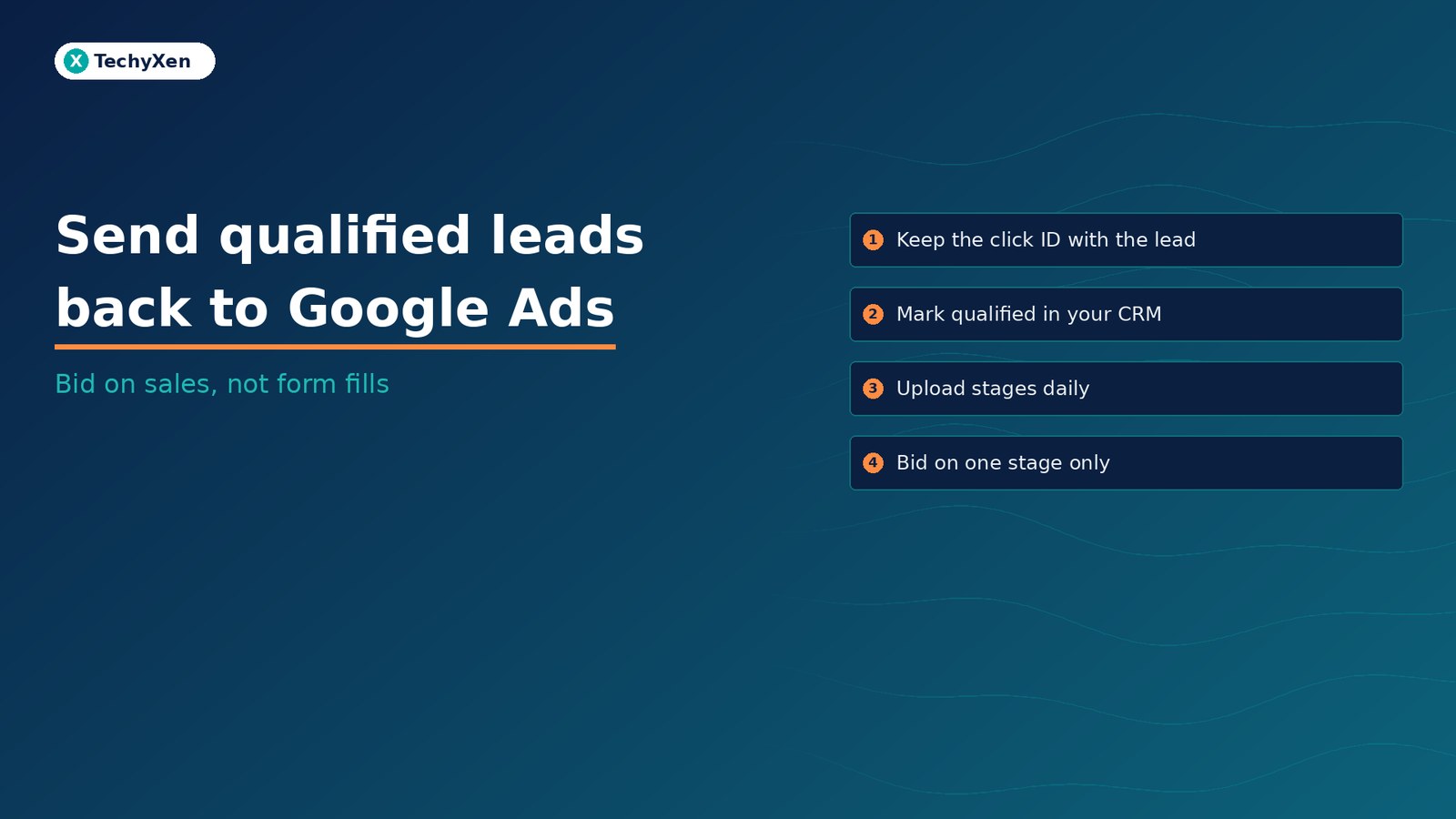
If Google Ads only sees form submissions, it will find you more people who submit forms, including the ones who never pick up the phone. The fix is to send the outcome back. Google Ads can import what happens after the click, such as a lead your team marked as qualified or a deal that closed, and match it to the ad that started it. Google calls the current version enhanced conversions for leads: an upgraded offline conversion import that uses hashed details from your lead form, such as an email address, alongside the click ID. Set it up once, upload daily, and your bidding and reports start counting customers.
Why form-fill conversions train the wrong campaigns
A form submission is the cheapest signal to count and the easiest to fake. Spam, students, job seekers and price shoppers all count the same as a buyer. Smart Bidding optimises toward whatever you mark as a conversion, so a campaign that looks efficient on cost per lead can be filling your sales team’s day with calls that go nowhere.
Google’s own guidance on generating high-quality leads says to choose a conversion goal that matches your business outcome, and to use lead-generation goals such as “qualified lead” or “converted lead”. Those goals only work if your sales stages reach Google Ads.
Qualified lead or converted lead: pick the stages that matter
Google Ads replaced the old “imported leads” goal with two goal types:
- Qualified lead: a lead from Google that your team has checked and confirmed outside Google Ads, in your CRM or lead sheet. For example, budget confirmed or site visit booked.
- Converted lead: a lead that completed the step you define as the result, usually a signed deal, paid invoice or first order.
Google’s offline conversion import FAQs recommend a separate conversion action for each stage, because you usually bid toward only one of them. The others still show in reports as secondary actions, which is how you see where leads drop out.
To choose the stage to bid on, the lead quality guide gives three tests: at least 15 conversions in the last 30 days at account level, uploads ideally daily, and a conversion that ideally happens within 7 days of the ad interaction. For most small service businesses, “qualified lead” passes those tests long before “closed deal” does.
Bid on the deepest stage that still gives Google enough volume. Track every other stage, but do not ask the algorithm to chase them all at once.
What your website and CRM need to capture first
Matching only works if the lead record carries something Google can recognise. Google’s tag setup guide lists the requirements:
- Auto-tagging on in Google Ads, so every ad click carries a Google Click ID (GCLID).
- An email or phone field on the form. Email is preferred because it is unique and rarely reformatted. A phone number must include the country code.
- The Google tag set to capture that field when the form is submitted. Once enabled, the tag picks up form interactions automatically.
- The GCLID stored with the lead. Google’s GCLID setup guide describes a hidden form field filled by a small script. The ID is case-sensitive, so never let a spreadsheet or CRM change it.
- A stage field and a stage date in your CRM, updated by whoever speaks to the lead. Without the date, you cannot tell Google when the conversion happened.
Leads that arrive by WhatsApp or phone skip your form, so they carry no click ID or form email. Capture the source as close to the first message as you can, or those sales stay invisible to Google Ads.
A five-step setup that works with most CRMs
- Agree the definitions. Write one sentence for “qualified” and one for “converted”, and get sales to use them every time.
- Create the conversion actions. In Google Ads, go to Goals, then Conversions, Summary, and create an import action for CRMs, files or other data sources. Pick Qualified lead or Converted lead as the goal and set only one as primary.
- Connect a data source. Google Ads Data Manager connects to files, Google Sheets, HubSpot, Salesforce and databases. The connection rules require admin access, a header row, and the same source name every time.
- Wait before the first upload. Google advises waiting 4 to 6 hours after creating a new conversion action. Uploads made earlier can take 2 days to show in reports.
- Upload daily and check. Imported conversions take about 3 hours to appear. Validate with the “All conv. (by conv. time)” column, which reports by the conversion date in your file.
Developers building a direct integration should note that, from 15 June 2026, offline conversion and enhanced conversions for leads uploads moved to the Data Manager API and are blocked in the Google Ads API for most developer tokens.
Upload windows and duplicates that quietly drop data
Google’s guidelines for importing offline conversions set hard limits that catch out slow sales teams:
- 63 days for enhanced conversions for leads. Conversions uploaded more than 63 days after the last ad click are not imported. Plain GCLID imports allow 90 days.
- One conversion per identifier, action and time. The same lead, conversion name, date and time is counted once. Re-uploads are deduplicated, so a daily full export is safe.
- Repeat sales need different times and the conversion action set to count every conversion.
- Long sales cycles report late. If leads take three days to qualify, last Monday’s numbers are not complete until later in the week. Judge campaigns on settled periods.
If your typical deal takes longer than 63 days to close, bid on qualified leads and treat closed deals as a reporting stage.
A lead marked qualified on day 70 never reaches Google Ads. The CRM habit matters as much as the setup.
Privacy rules and the categories you cannot measure
You are sending customer data, even hashed, so Google’s customer data policies apply. In short:
- Upload only first-party data: details customers shared directly with you.
- Tell customers, in your privacy policy, that you share information with third parties for ad measurement, and get consent where the law requires it.
- Use only Google’s approved tag, API or interface to send it.
- Check the sensitive categories list before you start. Conversions involving health or medical information, such as purchases of medical services, and several other categories cannot be used for measurement in enhanced conversions. Clinics and similar businesses should confirm what they may send.
Make every lead count before you raise the budget
Once qualified and converted leads flow back daily, the Google Ads numbers stop arguing with your sales numbers. You can see which campaigns and searches bring customers, cut the ones that only bring form fills, and give Smart Bidding a target that matches your business.
TechyXen sets this up end to end as part of our full-service work: performance marketing on Google and Meta, websites and landing pages built to convert, CRM and WhatsApp automation that records every lead and its stage, plus SEO, AI search visibility and social media. Write to [email protected], call +91 92705 93725, or use the links below.
Performance marketing · CRM and automation · Web development · Contact · WhatsApp · Call

4 Comments
[…] Send qualified leads from your CRM back to Google Ads before you raise the budget […]
[…] Send qualified leads from your CRM back to Google Ads before you raise the budget […]
[…] It works best when every call is logged in a CRM with number, time, and outcome. It is the phone version of what we covered in sending qualified leads from your CRM back to Google Ads. […]
[…] Once these pass, give the campaign a week of stable data before raising spend. If your best leads close later by phone or WhatsApp, the Conversions API can also send those offline and CRM events, the same idea as sending qualified leads from your CRM back to Google Ads. […]