
For founders and small marketing teams running Google, Meta or email campaigns: how to decide which actions count as results in Google Analytics 4, mark them as key events, and test them before you judge any ad spend.
If Google Analytics 4 does not know what a lead or a sale looks like on your site, every campaign report is guesswork. GA4 records page views and scrolls on its own, but it only treats an action as a business result once you mark that event as a key event. Marking applies from that moment forward, not to past data. So the cheapest fix in performance marketing is to define three to five key events, test them, and only then compare channels or raise budgets.
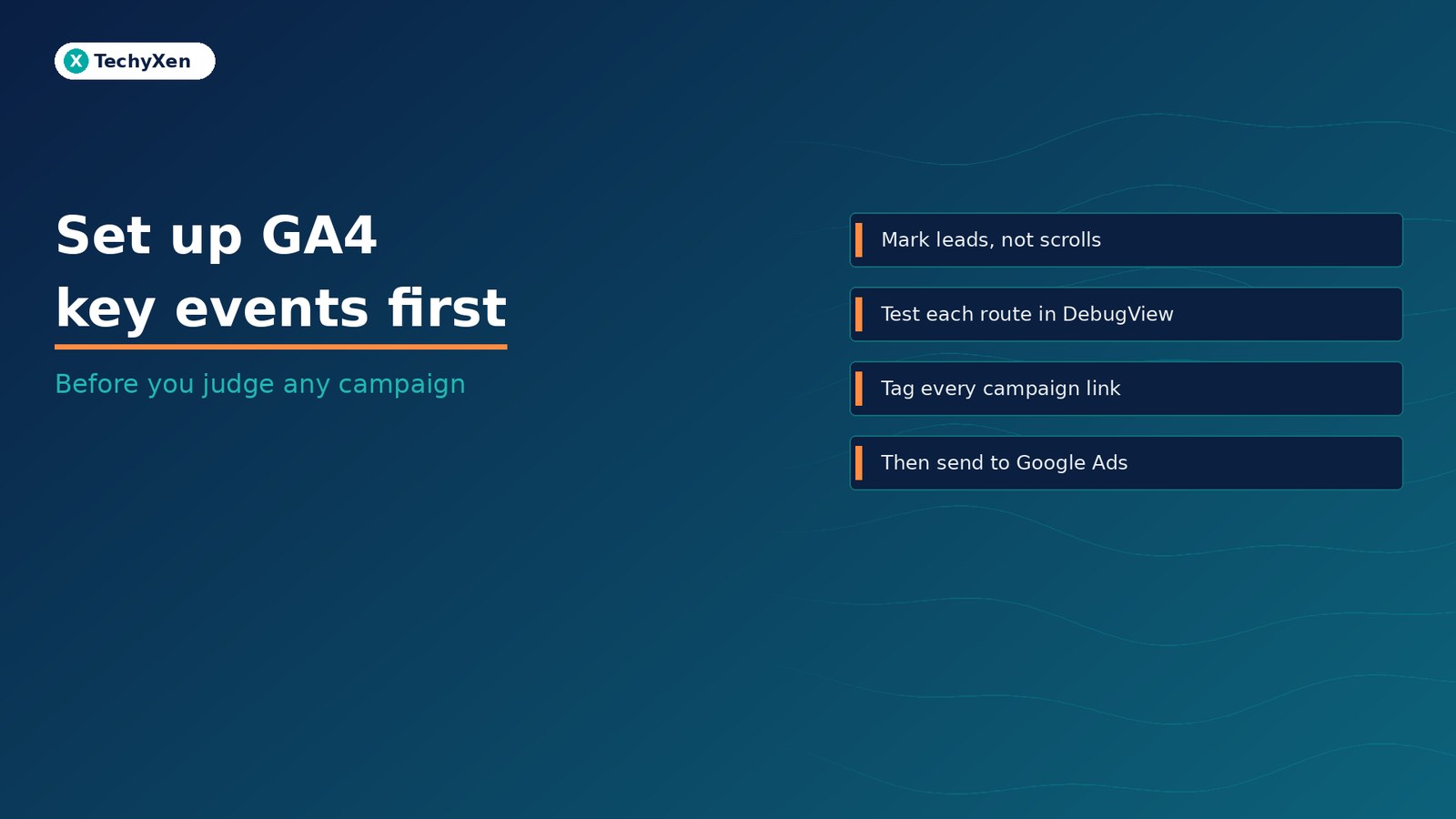
Key events and conversions are not the same thing
Google renamed the old GA4 “conversions” to key events and now uses “conversion” for the actions that Google Ads bids on. Google’s own explainer, Conversions vs. key events, sets out the flow as Event → Key event → Conversion.
- Event: anything GA4 records, such as
page_view,scrollorform_submit. - Key event: an event you mark as important to the business. It shows up in acquisition and behaviour reports across every channel, organic and paid.
- Conversion: a key event you also hand to Google Ads so campaigns can be measured and bid against it. This needs a linked Google Ads account.
The practical point: numbers in GA4 key event reports and in Google Ads conversion columns can differ, because they can use different attribution models, lookback windows and counting methods. Google lists these settings as the first things to check when the two disagree.
Why most small business GA4 setups mislead
We see the same problems again and again when we audit analytics for new clients:
- No key events at all. Only
purchaseis a key event by default on the web, so a lead-generation site with no shop reports zero results from every channel. - The wrong event is marked. A 90% scroll or a page view of the contact page gets starred because it was easy. It tells you who browsed, not who enquired.
- Generic
form_submitcounts every form. Enhanced measurement fires form_submit when a form is submitted, which includes newsletter boxes and other forms that are not enquiries. - WhatsApp and phone taps are invisible. For many service businesses these are the main enquiry routes, and they are plain links unless someone tracks them.
- Campaign links carry no UTM tags, so paid social and email traffic lands in Direct or Referral and the key events get credited to the wrong source.
Marking an event as a key event changes reports from that day forward. It never rewrites last month, so set it up before the campaign, not after.
Pick three to five key events that match real revenue
A standard GA4 property allows up to 30 key events, but a short list is easier to trust. Choose actions that a salesperson or a cash register would recognise. Google’s recommended events give you standard names that reports and Google Ads already understand:
generate_leadfor a successful enquiry form submission (fire it on the thank-you state, not on the click).purchasefor a completed order, withvalueandcurrencyfilled in.- A custom event such as
whatsapp_clickorcall_clickfor taps onwa.meandtel:links. - A booking event, for example
book_appointment, when a calendar or booking tool confirms the slot. - Later stages such as
qualify_leadandclose_convert_leadif your CRM can send them back. These are part of Google’s lead generation event set and let you judge campaigns on qualified leads, not raw form fills.
Leave scrolls, video plays and file downloads as ordinary events. They are useful for content decisions but should not sit next to leads and sales in a campaign report.
How to mark and test a key event
The steps below follow Google’s Mark events as key events guide. You need Editor or Marketer access on the property.
- Make sure the event exists. Send it from your Google tag or Google Tag Manager, or create it in GA4 from an existing event under Admin → Data display → Events → Create event.
- Mark it. In the same Events screen, click the star next to the event, or toggle Mark as key event when you create a new one. You can mark a new event before GA4 has received it.
- Test it. Open DebugView, submit a real test enquiry, tap the WhatsApp button and place a test order. Each action should appear once, with the right parameters.
- Wait before you read reports. Google says key events can take up to 24 hours to show in standard reports, although Realtime updates within minutes.
- Write it down. Keep a one-page list of each key event, what triggers it and the date it went live, so nobody compares weeks before and after the change by mistake.
One real test lead through every enquiry route is worth more than a week of dashboards built on an untested tag.
Tag every campaign link so credit goes to the right channel
Key events only help if GA4 knows where each visitor came from. Google Ads handles this with auto-tagging. For Meta, email, WhatsApp broadcasts and influencer links, add UTM parameters yourself.
- Always use
utm_source,utm_mediumandutm_campaign, as Google’s URL builder guide recommends. - Keep one strict, lower-case naming convention. GA4 treats
Facebookandfacebookas different sources. - Use medium values GA4 recognises, such as
cpc,paid_socialoremail, so traffic lands in the right default channel group. - Never put UTM tags on internal links within your own site. They overwrite the source that actually brought the visitor in.
Connect key events to Google Ads only when they are clean
Once a key event has been tested and is firing once per real action, you can create a Google Ads conversion from it. Google’s example is exactly the lead case: mark generate_lead as a key event, then use it for bidding, rather than a scroll event that only shows interest.
- Choose one primary conversion per campaign goal, so Smart Bidding optimises toward the action you actually want.
- Give leads a value if some are worth more than others. Even a rough value helps the bidding system tell a booking from a newsletter sign-up.
- Recheck after any website change. A new form plugin, theme update or thank-you page redesign can silently stop the event, and the campaign keeps spending.
Measure first, then scale what works
Before you judge a channel, pause a campaign or raise a budget, confirm three things: the key events are the right ones, each one was tested end to end, and every campaign link is tagged. With that in place, GA4 and Google Ads give you numbers you can act on instead of numbers you argue about.
TechyXen sets up this measurement layer as part of our full-service work: websites and landing pages built to track enquiries, GA4 and Google Tag Manager configuration, performance marketing on Google and Meta, and CRM and WhatsApp automation that sends lead stages back to your reports. Write to [email protected], call +91 92705 93725, or use the links below.
Digital marketing · Web development · Automation and CRM · Contact · WhatsApp · Call

6 Comments
[…] Set up GA4 key events before you judge any campaign […]
[…] Set up GA4 key events before you judge any campaign […]
[…] Set up GA4 key events before you judge any campaign […]
[…] old and cleaned data, so judge campaigns on the period after it. Once the data is clean, set up GA4 key events so you measure enquiries, not just […]
[…] Set up GA4 key events before you judge any campaign […]
[…] Set up GA4 key events before you judge any campaign […]