
A practical guide for business owners whose quotes, invoices, and website form emails keep ending up in spam. What SPF, DKIM, and DMARC actually do, what Gmail, Yahoo, and Outlook now require, and a safe order for setting them up without breaking the email you already send.
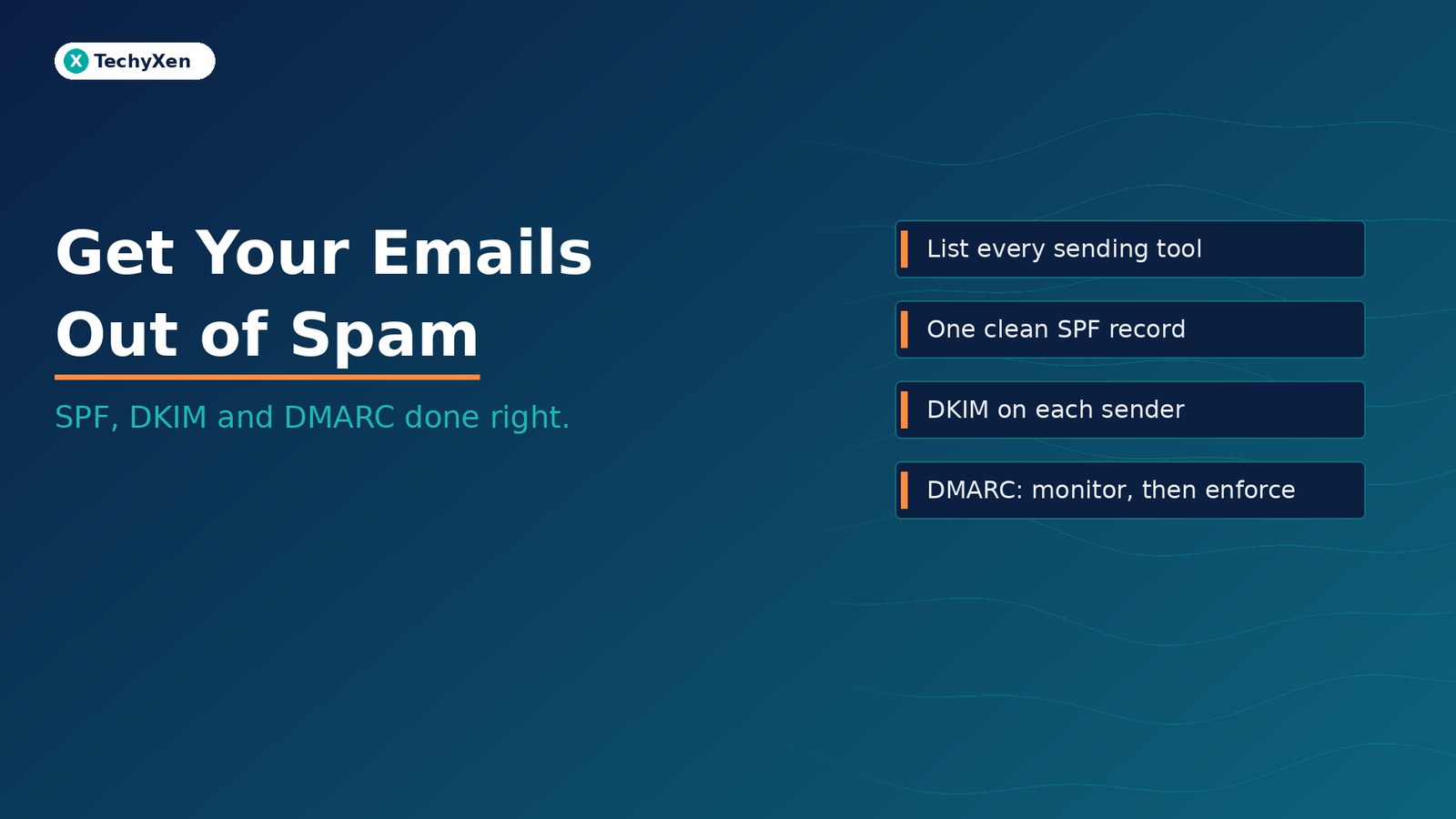
If your business emails land in spam, the cause is usually not the wording. It is missing or broken email authentication: the SPF, DKIM, and DMARC records on your domain that prove a message really came from you. Since February 2024, Gmail has required every sender to authenticate with at least SPF or DKIM, and bulk senders to use all three. Yahoo set the same rules, and Outlook.com followed in May 2025. List every service that sends as your domain, publish one correct SPF record, turn on DKIM for each sender, then add DMARC in monitoring mode and tighten it once the reports are clean.
Why good emails from real businesses still land in spam
Email was designed without any built-in way to prove who sent a message. Anyone can type your address into the From line, which is why mailbox providers now look for technical proof before they trust a message. When that proof is missing, they treat your quote the same way they treat a phishing attempt that uses your name.
Most small businesses never set this up on purpose. The domain was bought by one person, email was set up by another, and the website, invoicing tool, CRM, and newsletter service were added later, each sending as your domain in its own way. The result is common:
- Website contact form emails sent straight from the web server, which is not listed as an approved sender.
- Invoices from accounting software that sign with the software’s domain instead of yours.
- Two separate SPF records left behind by two different setup guides.
- No DMARC record at all, so receivers have no instruction and you get no reports.
None of these show up as an error on your side. The email leaves your outbox, and the customer simply never sees it.
What SPF, DKIM, and DMARC each do
The three records work together, and each answers a different question for the receiving mail server. All three are published as text (TXT) records in your domain’s DNS, wherever your domain is managed.
- SPF (Sender Policy Framework) lists the servers and services allowed to send email for your domain. Google’s guidance is direct: the SPF record should include every sender for your domain, and messages from third-party senders that are not included are more likely to be marked as spam.
- DKIM (DomainKeys Identified Mail) adds a digital signature to each message, which the receiver checks against a public key in your DNS. It proves the message came from an approved system and was not changed on the way. Gmail requires a key of at least 1024 bits and recommends 2048 bits where your provider supports it.
- DMARC (Domain-based Message Authentication, Reporting and Conformance) tells receivers what to do when a message fails, and sends you reports about who is sending as your domain. To pass, a message must pass SPF or DKIM, and the domain that passed must match the domain in the visible From address. That match is called alignment.
Alignment is the part most setups miss. A tool can pass SPF or DKIM on its own domain and still fail DMARC for yours, because the passing domain does not match your From address.
“SPF says who may send, DKIM proves the message is genuine, and DMARC checks that both point back to the address your customer actually sees.”
What Gmail, Yahoo, and Outlook now require
The three largest consumer mailbox providers have published sender rules. For every sender emailing personal Gmail accounts, Google requires:
- SPF or DKIM authentication for the sending domain.
- Valid forward and reverse DNS for the sending servers, and a TLS (encrypted) connection.
- A user-reported spam rate in Google Postmaster Tools below 0.3%. Google advises keeping it below 0.1%.
Senders that send close to 5,000 or more messages a day to Gmail accounts are classed as bulk senders, permanently, and must also have:
- Both SPF and DKIM, plus a DMARC record with a policy of at least
p=none. - A From domain aligned with the SPF or DKIM domain.
- One-click unsubscribe on marketing messages, with unsubscribe requests honoured within 48 hours.
Yahoo’s published requirements match these closely, including the 0.3% spam rate limit and honouring unsubscribes within two days. Microsoft announced that from 5 May 2025, Outlook.com, Hotmail, and Live addresses would require SPF, DKIM, and DMARC from domains sending more than 5,000 emails a day, with failing messages rejected. Google says that from November 2025 it is ramping up enforcement, with temporary and permanent rejections for messages that do not meet its requirements.
Most small businesses are nowhere near 5,000 emails a day, but the bulk rules are still the right target. Google itself recommends that every domain set up SPF, DKIM, and DMARC, and messages that are not authenticated can be marked as spam or rejected regardless of volume.
Find every service that sends email as your domain
Before you change any DNS record, make a list. Every tool that sends with your domain in the From address needs to be covered, or the stricter settings later will block it. Check:
- Your mailbox provider — Google Workspace, Microsoft 365, Zoho Mail, or your host’s email.
- Your website — contact forms, booking confirmations, and store order emails.
- Business tools — invoicing and accounting software, CRM, helpdesk, and appointment systems.
- Marketing tools — newsletter and email campaign platforms.
Each provider publishes the exact SPF include and DKIM records it needs, usually in its domain authentication or sender settings. For website forms, the reliable fix is to send through an authenticated mailbox or a transactional email service using SMTP, rather than the web server’s default mail function, so the messages carry your domain’s signature.
Set up SPF and DKIM without breaking anything
SPF has two rules that cause most failures. You can publish only one SPF record per domain, and a single SPF check may trigger no more than 10 DNS lookups. Microsoft’s own FAQ for senders warns that going over the 10-lookup limit can make the SPF check fail.
- Merge, do not add. If you find two records starting with
v=spf1, combine them into one with all the includes you need. - Remove services you no longer use. Old includes waste lookups and leave doors open for tools nobody controls.
- End with a clear rule.
~all(soft fail) is the usual starting point while you check that nothing is missed. - Turn on DKIM in each tool. Every sender gets its own DKIM key, published under its own name (called a selector), so services do not overwrite each other.
After each change, send a test message to a personal Gmail address, open it, and use “Show original” to check that SPF, DKIM, and DMARC all show PASS. Repeat for each tool on your list, including the website form.
Roll out DMARC in stages: monitor, then enforce
DMARC has three policies, and the safe path is to move through them in order. Microsoft gives the same advice: move gradually from none to quarantine to reject to avoid losing legitimate mail.
- Start with
p=none. Nothing is blocked. Add a reporting address (theruatag) so receivers send you daily aggregate reports of every source sending as your domain. - Read the reports for a few weeks. Look for legitimate tools that fail alignment and fix them, and note any unknown sources that may be impersonating you.
- Move to
p=quarantineonce your real senders pass. Failing messages go to spam instead of the inbox. - Finish at
p=reject. Failing messages are refused outright, which is the strongest protection against someone sending fake invoices in your name.
Raw DMARC reports are XML files that are hard to read by hand, so most businesses send them to a free or paid DMARC reporting service that turns them into a simple list of senders and pass rates.
“A DMARC record set to reject is not just about deliverability. It is what stops a stranger from sending your customers a fake invoice from your own domain.”
Keep your sending reputation healthy after setup
Authentication proves who you are. Whether you reach the inbox still depends on how recipients react to what you send. Google, Yahoo, and Microsoft all point to the same habits:
- Email only people who asked to hear from you. Do not buy lists or pre-tick subscribe boxes on your website forms.
- Keep business types separate. Google recommends using different From addresses for different kinds of mail, such as invoices, account notices, and promotions, and not mixing promotions into receipts.
- Make unsubscribing easy on newsletters and campaigns, and remove addresses that bounce.
- Use a clear, honest display name that identifies your business, not a subject line or a fake “Re:”.
- Watch the numbers. Google Postmaster Tools shows your spam rate and authentication results for mail sent to Gmail users once you verify your domain.
Check the setup again whenever you add a new tool, switch email provider, or rebuild your website, because each of those changes who sends email as your domain.
Make sure every quote and enquiry reply arrives
Email authentication is a one-time job that protects every message you send afterwards: quotes, invoices, booking confirmations, and replies to new enquiries. List every service that sends as your domain, publish one clean SPF record, turn on DKIM for each sender, start DMARC in monitoring mode, and move to enforcement once the reports are clean. Then keep your lists permission-based and watch your spam rate.
TechyXen sets up and tidies business email for growing companies as part of website, CRM, and automation work: DNS records, SMTP for website forms and store emails, DKIM for each business tool, and a staged DMARC rollout. If your emails are going to spam, or you are not sure who is sending as your domain, we can audit it and fix it in a safe order.
Web development · Automation & AI · Digital marketing · Contact · WhatsApp · Call

1 Comment
[…] Why your business emails land in spam — set up SPF, DKIM, and DMARC the right way […]